How to Change Language in Google Chrome (Windows, macOS & Android)

Sometimes after reinstalling Windows or changing regional settings, Google Chrome launches in a language you did not expect. You do not need to reinstall the browser – you can switch Chrome’s interface language in 30 seconds right from its settings.

Quick method on Windows: paste chrome://settings/languages into the address bar and press Enter → click Add languages, pick your language → click the three-dot menu next to it → check Display Google Chrome in this language and click Relaunch.
How to Change Google Chrome Language on Windows
If the menus are currently in an unfamiliar language, follow these steps in order:
- Click the three-dot icon in the top-right corner of Chrome and open Settings.
- In the left sidebar, click Languages – or jump straight there via the address bar:
chrome://settings/languages
- Under Preferred languages, click Add languages, search for the language you want, check its box, and click Add.
- Click the three-dot menu beside the newly added language and check Display Google Chrome in this language.
- Click Relaunch – Chrome will close and reopen in the new interface language.
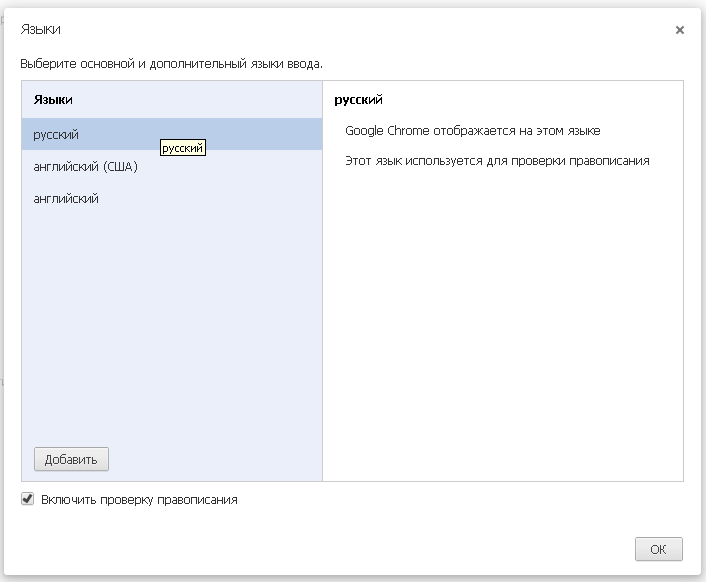
For visual reference, here are screenshots showing the general flow (modern Chrome looks cleaner, but the exact same logic applies):


Changing Chrome Language on macOS and Android
- On macOS: Chrome follows the system language and does not have an in-browser display-language checkbox. To change the language for Chrome alone, open System Settings → General → Language & Region → Applications, click
+, choose Google Chrome, and assign your preferred language. - On Android: open Chrome → three-dot menu → Settings → Languages → Chrome’s language and pick the language you want.
Added the Language, But the Menus Did Not Change?
- You moved the language to the top without checking the box. List order only controls which language websites serve and when Chrome offers to translate pages. Browser menus only change after checking Display Google Chrome in this language in the three-dot menu.
- Chrome stayed running in the background. If background apps are enabled, closing the window does not restart the browser process. Click the Relaunch button on the Languages page or quit Chrome from the Windows system tray.
Bookmarking chrome://settings/languages in your head makes switching languages effortless even when you end up staring at a browser stuck in a language you cannot read.