How to Disable On-Screen Keyboard at Startup in Windows Server and Windows 10/11

When bringing up a fresh server through an IPMI or KVM console, physical keyboard input occasionally fails to pass through, forcing you to turn on Windows’ On-Screen Keyboard just to type your login and password. Once RDP is up and running, though, that keyboard keeps popping up at every single login.

Stopping the On-Screen Keyboard from auto-launching on Windows Server 2012/2016/2019/2022 and Windows 10/11 takes only a couple of clicks – just make sure you disable it for both your user profile and the sign-in screen.
Method 1. Via Control Panel (Windows Server 2012–2022 and Windows 10/11)
This classic path works identically across every Server and desktop edition of Windows:
- Open Control Panel (fastest way: press
Win+R, typecontrol, and hit Enter).

- Go to Ease of Access → Ease of Access Center → Use the computer without a mouse or keyboard.
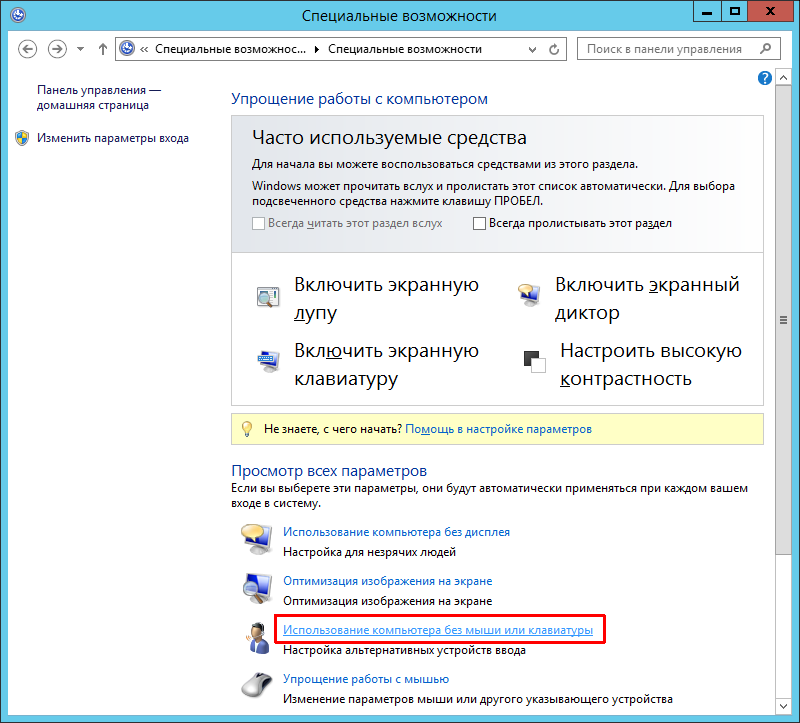
- Uncheck “Use On-Screen Keyboard” and click Apply → OK.

Method 2. If It Still Appears on the Windows Login Screen
Sometimes the keyboard disappears on the desktop yet keeps showing up on the lock/sign-in screen before you log in. That is because the sign-in screen keeps its own Ease of Access preference:
- Inside Ease of Access Center, click “Change sign-in settings” in the left sidebar and uncheck “Type without the keyboard (On-Screen Keyboard)” in the “At sign-in” column.
- Directly on the sign-in screen: click the Ease of Access / Accessibility icon in the bottom-right corner and switch “On-Screen Keyboard” off right there.
Method 3. Using Modern Settings on Windows 10 and 11
On desktop Windows 10/11 PCs, you can skip Control Panel completely:
- Windows 11: Settings (
Win+I) → Accessibility → Keyboard → switch off “On-screen keyboard”. - Windows 10: Settings → Ease of Access → Keyboard → toggle off “Use the On-Screen Keyboard”.
TabTip.exe): on 2-in-1 laptops and tablets, a larger Touch Keyboard can slide up from the bottom edge. Turn that one off under Settings → Time & language → Typing → Touch keyboard → “Show the touch keyboard” → Never (or stop TabletInputService).Once cleared in both your profile and sign-in settings, osk.exe stays out of your way on reboot – and if you ever need it again in a pinch, pressing Win+Ctrl+O brings it right back.