Free YouTube Video Editor and the Best Video Editing Alternatives in 2026

Back in 2010, YouTube launched its own online video editor inside TestTube – at the time it felt groundbreaking to splice, trim, and add audio tracks to clips straight in a browser without installing desktop software. Much has changed since then: the classic web editor has been retired, and in its place creators now have modern built-in YouTube tools alongside powerful watermark-free desktop editors.
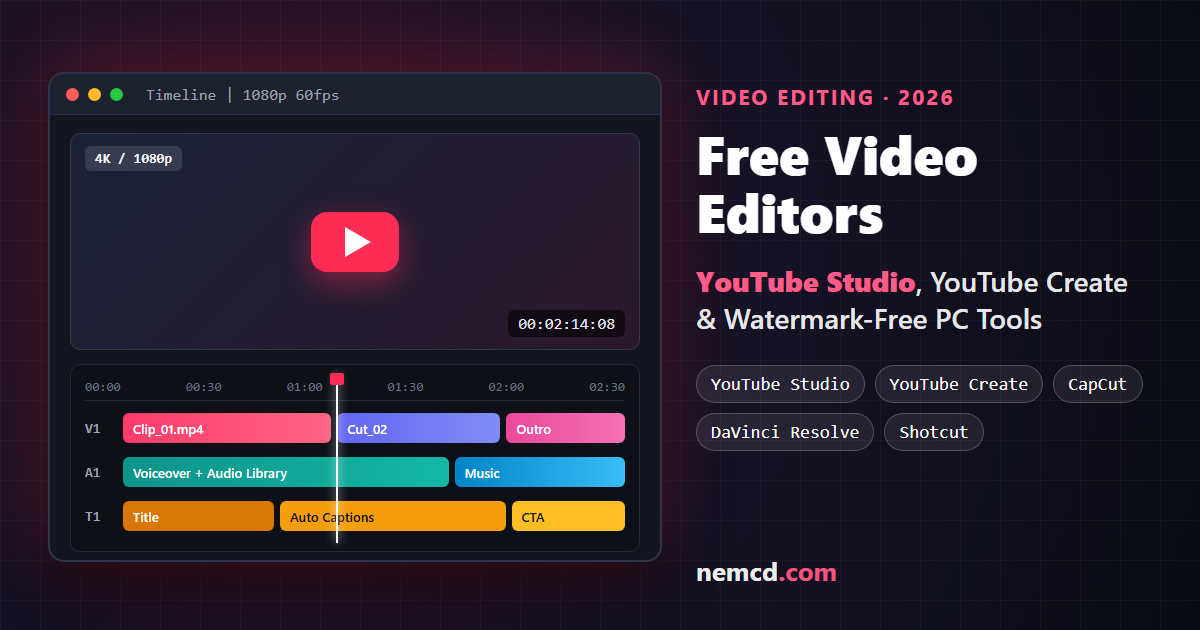 YouTube Studio, YouTube Create, and free watermark-free PC video editors in 2026
In the comments on this post, readers often got tripped up by one point: some looked for a “Download” button, while others noted that uploading gigabytes of raw footage to an online editor on a slow connection is a pain. To keep things clear from the start: YouTube’s built-in Studio editor runs strictly in the browser with nothing to download, whereas for full local editing from scratch you will want a dedicated desktop or mobile app.
What Happened to the Classic YouTube Video Editor
The original browser-based YouTube Video Editor (once hosted at youtube.com/testtube and later youtube.com/editor) let creators combine previously uploaded clips, trim segments, and overlay a single track from the audio library. Its biggest drawbacks were slow server-side processing (cutting 20 seconds could take 10 minutes instead of seconds in a local tool like VirtualDub), no color grading, and no way to edit an already published video in place without creating a new upload.
For historical context, here is the original 2010 walkthrough video introducing that editor:
Google officially shut down the standalone web editor on September 20, 2017, keeping essential post-upload fixes inside YouTube Studio and later launching a dedicated mobile editing app.
Built-In YouTube Tools in 2026
Today YouTube offers two free official tools – one in your browser for editing videos already on your channel, and one on mobile for building videos from scratch.
1. YouTube Studio Video Editor (Browser)
Available at studio.youtube.com under Content → select a video → Editor. This cloud editor is designed specifically for already uploaded or published videos so you can fix mistakes without losing your URL, views, or comments:
- Trim and cut: shorten the start or end of a video, or remove unwanted sections from the middle.
- Blurring: automatically blur faces or draw custom blur boxes (useful for hiding license plates, passwords, or private chats after upload).
- Audio swap: add or replace audio with royalty-free tracks from the YouTube Audio Library (handy when resolving copyright claims).
- End screens: place clickable video cards and subscribe overlays in the final seconds.
It is not meant for assembling a multi-clip montage from raw files on your hard drive – for that, use a standalone editor below.
2. YouTube Create (Free Mobile App)
YouTube’s official free editing app for Shorts and long-form videos with clean, watermark-free exports (launched for Android in September 2023 and later expanded to iPhone XR and newer on iOS 17+; Google Play and App Store availability depends on supported regions):
- Multi-track timeline: arrange clips, photos, transitions, stickers, and effects right on your phone.
- Auto-captions and audio cleanup: built-in automatic captions, background noise reduction, and voiceover recording.
- Royalty-free music: direct access to YouTube Audio Library tracks cleared for monetization.
- Clean export: save locally or publish straight to your channel without any watermark.
Best Free Watermark-Free PC Video Editors in 2026
If you want to download and install a video editor on your computer (Windows, macOS, or Linux) and edit locally without waiting to upload raw footage first, these free options export clean videos without watermarks:
- CapCut (Desktop / Web): fast and beginner-friendly for YouTube, Shorts, and social video, with smooth timeline controls and auto-captions. One nuance of the free tier: standard manual edits export at 1080p without a watermark, provided you avoid assets labeled Pro and delete the automatic CapCut outro clip at the end of your timeline.
- DaVinci Resolve (Free edition): Hollywood-grade NLE and color grading suite (Windows, macOS, Linux) supporting up to 4K 60fps exports with zero watermarks. It has a steeper learning curve and prefers a capable GPU, but its feature set is unmatched for serious channels.
- Shotcut and Kdenlive: 100% free, open-source video editors (Windows, Linux, macOS). No accounts, subscriptions, or resolution paywalls – ideal if you want straightforward offline editing with full privacy.
- Microsoft Clipchamp: built directly into Windows 11 (also available in the browser and Microsoft Store). Great for quick trimming, screen/webcam recording, and clean 1080p exports with no watermark.
Which One Should You Pick?
Choose the right tool based on what you actually need to do:
- Trim an already uploaded video or blur a face: built-in Editor in
studio.youtube.com(nothing to download). - Fast Shorts and vlog editing on your phone: YouTube Create or mobile CapCut.
- Quick Windows 11 cuts or privacy-first offline editing: Clipchamp, Shotcut, or Kdenlive.
- Full-scale 4K production and color grading on PC/Mac: free DaVinci Resolve.