How to Check Windows 7 and Server 2008 Activation from the Command Line

Question: how do I check whether Windows 7 or Windows Server 2008 is activated?
In short: open the command prompt and run slmgr /xpr – Windows will show whether the system is activated permanently or until a certain date. Detailed license information is shown by slmgr /dli. These commands do not require administrator rights.
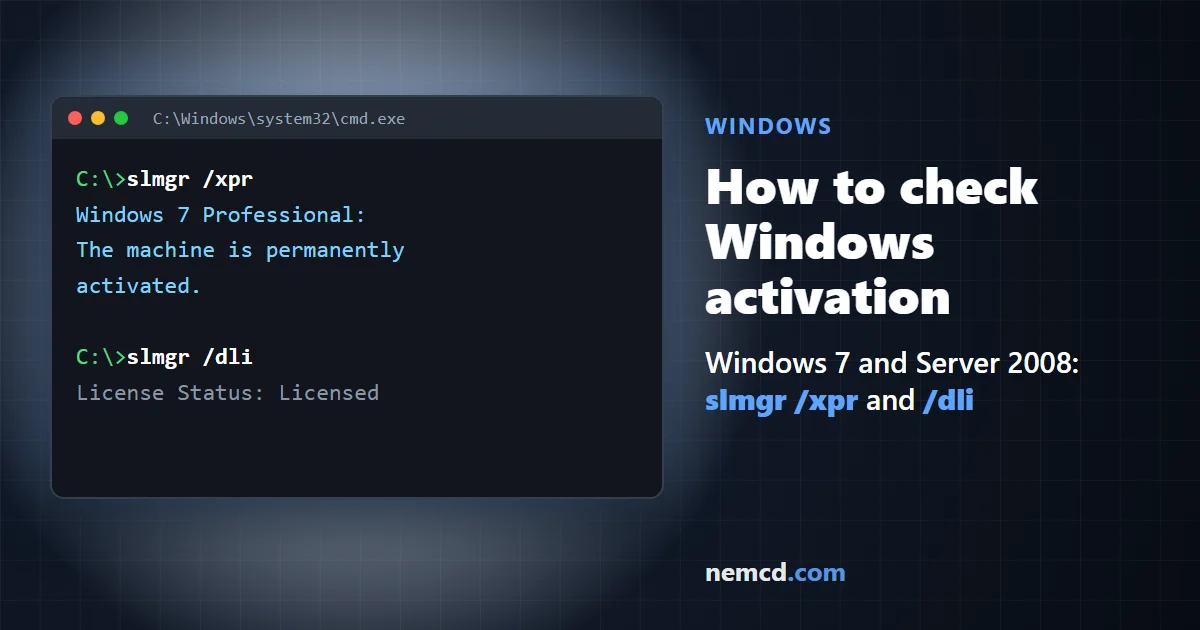
I used to recommend only slmgr -dli: it works too, but /xpr shows the activation period most clearly. Below are the three commands, what each of them shows, and how to check activation without the command prompt.
Checking from the command prompt
- Click Start, type cmd in the search box and press Enter (or Win+R → cmd).
- In the black command prompt window, type:
slmgr /xpr
After a couple of seconds a Windows Script Host window appears with the result:
- the machine is permanently activated – this is what you get with a regular (retail), OEM or MAK activation, nothing else needs checking;
- an expiration date is shown – usually this is corporate KMS activation: it lasts 180 days, and the computer renews it automatically as long as it can see the KMS server on its network;
- a message about a grace period or an error – Windows is not activated.
You can write the command with a dash (slmgr -xpr) or with a slash – it makes no difference.
What the slmgr commands show
slmgr /xpr– whether the system is activated and until what date.slmgr /dli– brief license information: Windows edition, channel (Retail, OEM, Volume), the last five characters of the product key and the license status.slmgr /dlv– detailed information: all of the above plus the activation and installation IDs and how many more times the trial period can be reset.
If the license status in /dli is Licensed, Windows is activated. If it says Initial grace period or Notification, you need to activate it.
Output to the console instead of a window
The result window is inconvenient if you need to copy the information into an email or check Server Core. Run the same script through cscript – the text will be printed right in the command prompt:
cscript //nologo %windir%\system32\slmgr.vbs /dli
You can check the activation of another computer on the network by putting its name, a user name and a password before the command option (replace server2, admin and Pass with your own):
slmgr server2 admin Pass /dli
Checking without the command prompt
Click Start, right-click Computer and select Properties. At the bottom of the window, in the Windows activation section, you will see whether Windows is activated and, if not, how many days are left to activate it.
If Windows is not activated
To activate the system over the internet, open the command prompt as administrator (right-click cmd → Run as administrator) and run:
slmgr /ato
Then check the result again with slmgr /xpr.
Windows 8, 10 and 11 (update as of November 2026)
The slmgr /xpr, /dli and /dlv commands also work in newer versions of Windows. Without the command prompt you can see the status in Settings: in Windows 10 – Settings → Update & Security → Activation, in Windows 11 – Settings → System → Activation.