How to Install mc (Midnight Commander) on Ubuntu: Fix “Unable to locate package mc”

On a fresh Ubuntu Server install (18.04, 20.04, 22.04, or 24.04), running sudo apt install mc often throws E: Unable to locate package mc. The reason is simple: Midnight Commander lives in the universe repository, which is frequently disabled by default on minimal server images.
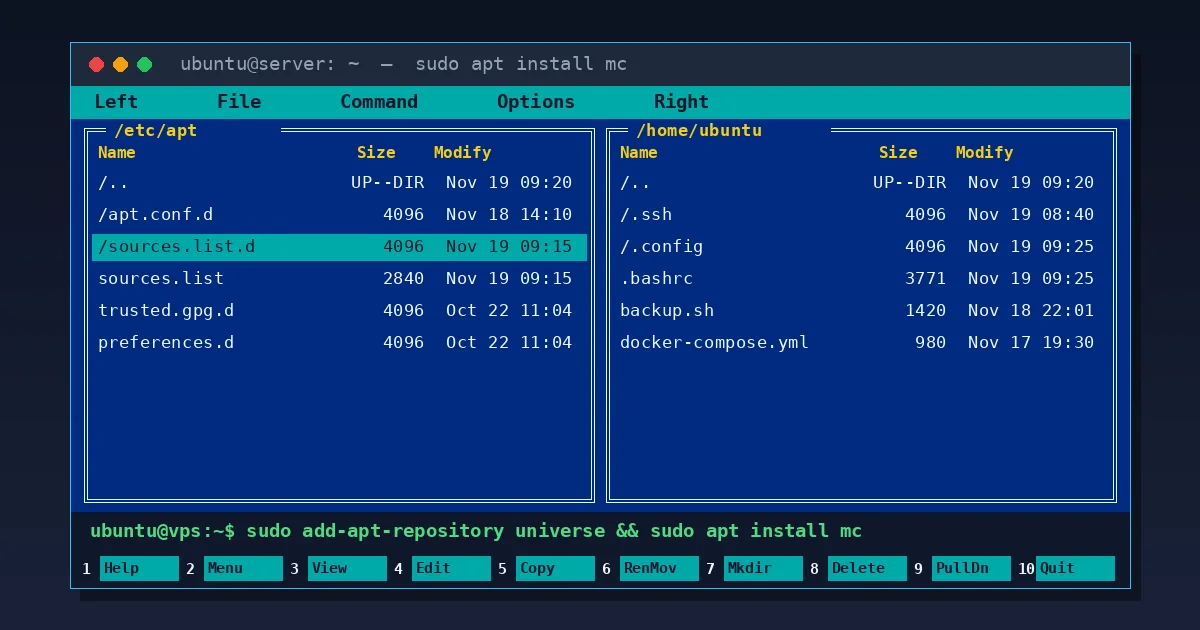
Quick install (3 commands): enable the universe repository, refresh the package index, and install mc:
sudo add-apt-repository universe
sudo apt update
sudo apt install -y mc
If You Get “add-apt-repository: command not found”
On minimal VPS images and Docker containers, add-apt-repository may not be preinstalled. You have two quick ways around it:
- Install the helper package and rerun the command:
sudo apt update
sudo apt install -y software-properties-common
sudo add-apt-repository universe
sudo apt update && sudo apt install -y mc
- Enable
universemanually without extra packages:- On Ubuntu 24.04 (Noble) and newer, sources use DEB822 format in
/etc/apt/sources.list.d/ubuntu.sources. Open it withsudo nano /etc/apt/sources.list.d/ubuntu.sourcesand make sureuniverseappears on theComponents:line (for example:Components: main restricted universe multiverse). - On Ubuntu 20.04 / 22.04, open
sudo nano /etc/apt/sources.listand confirmuniverseis included on yourdeb http://archive.ubuntu.com/ubuntu ...lines.
Save the file and run
sudo apt update && sudo apt install -y mc. - On Ubuntu 24.04 (Noble) and newer, sources use DEB822 format in
Launching mc and Essential Keyboard Shortcuts
Start Midnight Commander by typing mc (or sudo mc when editing system config files). These shortcuts immediately speed up terminal work:
- Tab – switch between the left and right panels.
- F3 / F4 – view or edit the highlighted file.
- F5 / F6 – copy or move/rename files and folders.
- F7 / F8 – create a directory / delete files or folders.
- Ctrl + O – toggle the panels out of the way to run shell commands, then switch right back without closing
mc. - F10 – quit Midnight Commander.
Two Helpful Tweaks Right After Installing
- Pick your favorite F4 editor. The first time you press
F4, Ubuntu asks which editor to use (nano,mcedit,vim). If you picked the wrong one, switch anytime by runningselect-editor(or enable the built-inmceditunder F9 → Options → Configuration → Use internal edit). - Stay in the active directory on exit. By default, pressing
F10drops your shell back into the folder where you launchedmc. To remain inside the directory you navigated to, add this alias to the bottom of~/.bashrc:alias mc='. /usr/lib/mc/mc-wrapper.sh'
Then reload with
source ~/.bashrc.
Whenever I provision a fresh Ubuntu VPS (such as a server on Fornex with 7% off or hourly Vultr), installing mc is almost always the first thing I do right after setting up SSH key login.
Disclosure: the Fornex and Vultr links are affiliate links – your price stays standard or discounted, while the blog earns a small commission.
Once universe is enabled, Midnight Commander installs in ten seconds on any Ubuntu box and saves tons of time browsing configs and logs.