Laptop Turns On Automatically When Opening the Lid – How to Disable

Many modern laptops – especially Lenovo IdeaPad, ThinkPad, Dell, and Apple MacBook models – ship with an auto-boot feature enabled by default: you shut the computer completely down, close the lid, and the moment you open it later, the laptop powers itself on without you touching the power button.

Some people like the instant-on feel, but if you just want to wipe dust off the keyboard or set the laptop on a desk, automatic startups quickly get annoying. Where you turn it off depends on whether the laptop is booting from full shutdown or waking from sleep.
Method 1. Disable It in BIOS / UEFI (Booting From Full Shutdown)
When a laptop is fully powered off (S5 state), Windows is not running yet – the motherboard firmware decides whether to power on. Windows settings cannot override this, so you have to turn off the option in BIOS/UEFI or the manufacturer’s utility:
- Lenovo (IdeaPad, Yoga, Legion, ThinkPad): enter BIOS, open the
Configurationtab, and set Flip to Boot toDisabled. On many Lenovo laptops you do not even need to enter BIOS – just open the Lenovo Vantage app in Windows (Device → Power → toggle off “Flip to Boot”). - Dell (Inspiron, XPS, Latitude): open BIOS →
Power Management→ uncheck Power On Lid Open (or set Lid Switch toOff). - ASUS, HP, Acer: look under
AdvancedorPowerin UEFI for Power On by Lid Open (available on select newer models).
Method 2. In Windows – If It Wakes From Sleep or Hibernate
If the laptop was asleep rather than completely off (or Windows Fast Startup was active), Windows handles the lid action. The Lid open action setting is hidden by default in Power Options, but one command unhides it.
Open Command Prompt or Windows Terminal as Administrator and run:
powercfg -attributes SUB_BUTTONS 99ff10e7-23b1-4c07-a9d1-5c3206d741b4 -ATTRIB_HIDEThen open Control Panel → Hardware and Sound → Power Options → Change plan settings → Change advanced power settings. Expand “Power buttons and lid” → “Lid open action” and set both On battery and Plugged in to Do nothing.
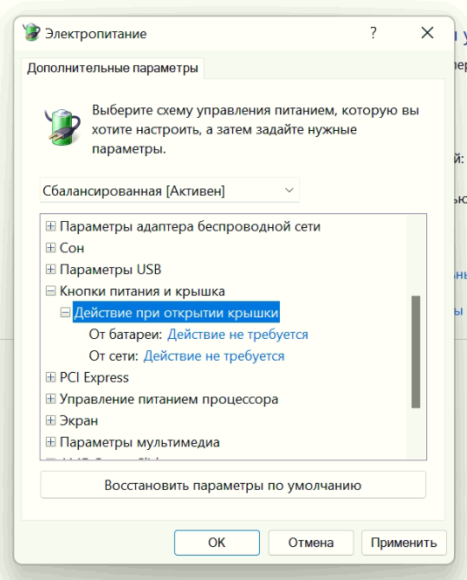
If you changed this setting and the laptop still boots from a full Shut down when you lift the lid, the trigger is definitely hardcoded in BIOS – as Microsoft community specialists confirmed as well:

Flip to Boot in BIOS, also uncheck “Turn on fast startup” under Control Panel → Power Options → Choose what the power buttons do.Method 3. How to Disable Auto-Boot on Apple MacBook
On Apple Silicon MacBooks (M1–M4) running macOS Sequoia 15 or later, Apple officially supports changing lid and power-cable startup behavior via Terminal:
- Prevent startup on both lid open and power connection:
sudo nvram BootPreference=%00 - Prevent startup only when opening the lid:
sudo nvram BootPreference=%01 - Restore default Apple behavior:
sudo nvram -d BootPreference
If you are on a Lenovo Windows laptop and want the fastest route without rebooting into BIOS, open Lenovo Vantage first – the Flip to Boot switch is right there and takes effect immediately.