How to Disable Automatic Updates in AIMP

AIMP has long been the go-to replacement for classic Winamp: lightweight, clean, and great-sounding. One small annoyance, though, is its default startup update prompt – every time a new build drops, it pops up asking you to update manually.

If your current version works just the way you like and you want to silence those update checks, turning them off takes less than thirty seconds. Depending on which version of AIMP you run, the option lives in one of two places.
In AIMP 4 and AIMP 5 (Current Versions)
In modern releases, the developers moved the setting directly into main Preferences:
- Open Preferences from the main menu (or press
Ctrl+P). - Go to System → Check for Updates (labeled simply “Updates” in some builds).
- Disable automatic checks: uncheck “Check for updates automatically” (or set the interval to “Never”).
- Click Apply and OK.
In AIMP 3 and Older Builds (via Update Checker Plugin)
Older versions of AIMP do not show an update toggle under System – the updater is bundled as a built-in plugin instead:
- Open Preferences (
Ctrl+P) → Plugins. - Switch to the “Addons / Components” tab.
- Find
Update Checker(aimp_update.dll) and uncheck the box next to it. - Click Apply and restart AIMP.
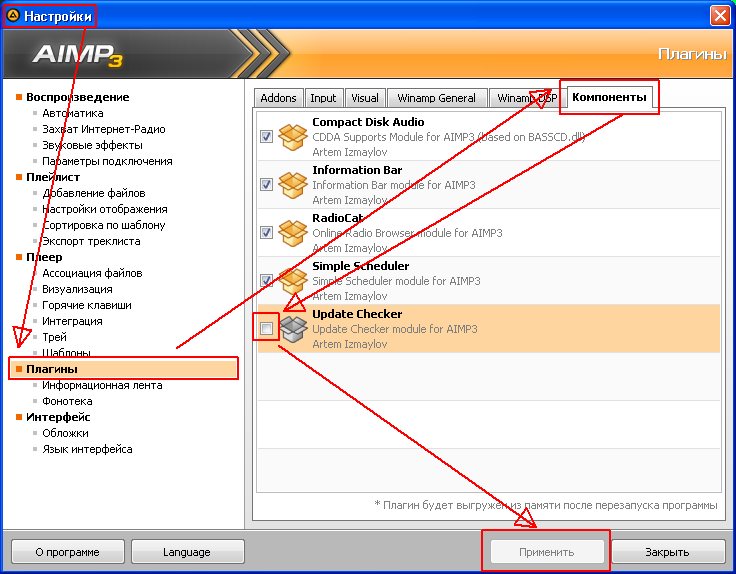
aimp_update.dll inside Plugins\aimp_update\.After that, AIMP stays completely quiet on startup – and whenever you actually want a newer release, you can always install the latest build manually right over the existing one without losing your playlists.