Samsung iDCS 500 & OfficeServ 500 PBX: How to Change Call Forward No Answer Time (MMC 502 & MMC 102)

On Samsung iDCS 500 business telephone systems (as well as the compatible Samsung OfficeServ 500, 7200, and 7400 PBX platforms), administrators frequently need to change how many rings occur before an unanswered incoming call automatically forwards to a colleague, receptionist, or voicemail box. While you can program every parameter from a digital keyset using KMMC codes, using the PC administration utility OfficeServ Manager (OSM) / PCMMC is much faster and clearer.
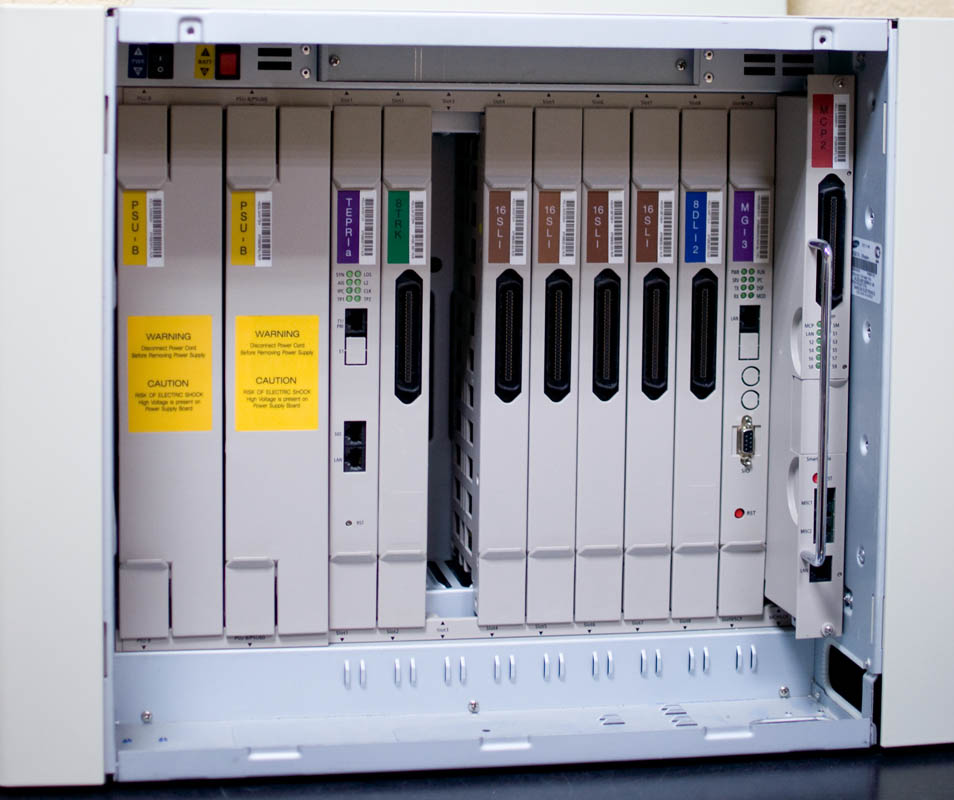
The key architectural detail to keep in mind on the Samsung iDCS 500 is that the forwarding destination and the delay timer live in two separate MMC (Man Machine Code) menus, and the delay threshold is configured strictly in seconds rather than a ring counter.
Step 1. Configure the Call Forwarding Route and Mode in MMC 102 (Call Forward)
Before adjusting the timer, verify that the extension (Station) has its forwarding destination and trigger condition properly set in MMC 102 (Call Forward):
- FWD ALL (Unconditional Forward): diverts all incoming calls to the target number immediately without ringing the primary desk phone.
- BUSY (Forward on Busy): forwards the caller only when the extension is already active on another call.
- NO ANSWER (Forward on No Answer): rings the desk phone for the duration defined in the station timer, then diverts the call to the backup extension or Hunt Group if nobody picks up.
- BUSY / NO ANS (Forward on Busy or No Answer): the most practical office mode, combining both conditions at once.
Select your target extension row in MMC 102, enter the destination extension or group number, and enable the desired forwarding mode.
Step 2. Adjust the Call Forward No Answer Timer in MMC 502 (Station Wide Timers)
By default, a Samsung PBX sets the Call Forward No Answer timeout to 15 seconds (which equals roughly 3 to 4 standard telephone rings, since one PBX ring-and-pause cycle takes about 4 seconds). If staff need more time to reach their desks – or if you want unanswered calls to bounce to a hunt group faster – open MMC 502 (Station Wide Timers):

Follow these steps to change the ring duration for an individual extension:
- In the OfficeServ Manager program tree, open MMC 502 – Station Wide Timers.
- Locate the desired internal extension number (Station) in the table and find the column labeled
CFD NO ANS TIME(Call Forward No Answer Time, abbreviated asFWD NO ANSin some PCMMC builds). - Enter the desired delay in seconds (valid range is
1to250seconds; use12seconds for ~3 rings,20seconds for ~5 rings, or25seconds for ~6 rings). - Click the Write / Save button on the top toolbar to commit the updated parameter to the PBX processor memory.
MMC 502), open MMC 501 (System Timers) and adjust the global CALL FWD NO ANS (or NO ANSWER TIMER) value. Any per-station value entered in MMC 502 always overrides the global default in MMC 501.If you also need to allow extensions to transfer an outside CO trunk call out to an external mobile or landline number (Trunk-to-Trunk / External Call Forward), remember to enable the EXT. CALL FWD permission flag for those stations in MMC 207 and verify the trunk disconnect supervision timers in MMC 301.