How to Send Email From the Windows Command Line Using Gmail (curl, PowerShell, and Blat)

Sending automated emails from a Windows command line or batch script is a lifesaver for sysadmins: a nightly script finishes a backup, exports a database, or checks disk space and immediately emails the log report.
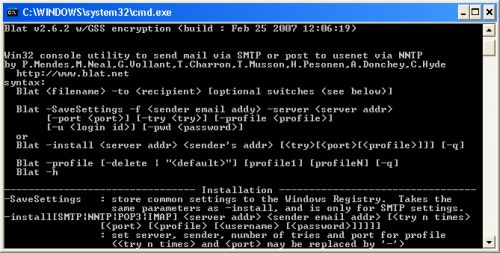
Below we cover both modern built-in ways to send email through Gmail on Windows 10/11 and Windows Server (using built-in curl.exe and PowerShell with zero third-party downloads) and the classic Blat + stunnel setup for legacy systems.
Mandatory Requirement for Gmail: A 16-Character App Password
Years ago scripts could log into smtp.gmail.com using your normal Gmail password, but Google has permanently disabled standard password logins for SMTP (which is why older scripts now fail with “The SMTP server did not accept Auth PLAIN value” or “535-5.7.8 Username and Password not accepted”).
To let any command-line script send mail through Gmail:
- Enable 2-Step Verification in your Google Account (Manage your Google Account → Security).
- Generate an App Password: search for “App passwords” in your Google Account settings, enter a label such as
BackupScript, and copy the 16-character password (without spaces). - Use that 16-character App Password in place of your regular password in all examples below.
Method 1. Built-in curl.exe (Windows 10, 11, and Server 2019+)
Modern Windows ships with curl.exe pre-installed, and it supports direct SSL/TLS connections to port 465 out of the box without any external SSL wrapper.
First create a simple text file mail.txt with headers followed by a blank line and the message body:
From: "Backup Server" <[email protected]>
To: <[email protected]>
Subject: Backup Report

Backup completed successfully!
Then send it with a single command from cmd or a .bat file:
curl.exe --ssl-reqd --url "smtps://smtp.gmail.com:465" --user "[email protected]:YOUR_16_CHAR_APP_PASSWORD" --mail-from "[email protected]" --mail-rcpt "[email protected]" --upload-file C:\send_mail\mail.txtMethod 2. One-Liner in PowerShell (With File Attachments)
If you want to attach a log file or archive (-Attachments), PowerShell handles STARTTLS on port 587 directly:
$secPass = ConvertTo-SecureString "YOUR_16_CHAR_APP_PASSWORD" -AsPlainText -Force
$cred = New-Object System.Management.Automation.PSCredential ("[email protected]", $secPass)
Send-MailMessage -From "[email protected]" -To "[email protected]" -Subject "Backup My DATA" -Body "Backup report attached" -Attachments "C:\send_mail\backup.log" -SmtpServer "smtp.gmail.com" -Port 587 -UseSsl -Credential $cred -Encoding UTF8
Method 3. Classic Blat + stunnel Setup (For Legacy Systems)
The lightweight console mailer Blat does not speak SSL/TLS natively, which smtp.gmail.com:465 requires. To bridge the gap on older systems, pair it with stunnel: Blat sends plain SMTP to local port 127.0.0.1:465, and stunnel wraps it in TLS before forwarding to Gmail.
Minimal stunnel.conf:
client = yes
output = stunnel.log

[ssmtp]
accept  = 127.0.0.1:465
connect = smtp.gmail.com:465
Install and start stunnel as a Windows service:
"C:\Program Files (x86)\stunnel\bin\stunnel.exe" -install
net start stunnel
Then call blat.exe in your send_mail.cmd batch script:
C:\send_mail\blat.exe -f [email protected] -server 127.0.0.1 -port 465 -u [email protected] -pw YOUR_16_CHAR_APP_PASSWORD -to [email protected] -subject "Backup My DATA" -body "Hello!" -attachi C:\send_mail\backup.logQuick reference for the main Blat flags:
-fand-to: sender and recipient email addresses.-server 127.0.0.1 -port 465: connects through your local stunnel listener.-uand-pw: your Gmail address and 16-character App Password.-attachivs-attach:-attachiembeds a plain-text log inline inside the email body, whereas-attachattaches binary files (such as.ziparchives or databases).
On modern Windows 10/11 or Server 2019/2022 machines, skip stunnel altogether and use built-in curl.exe or PowerShell – both work out of the box as soon as you plug in a 16-character Google App Password.