How to Set Up Port Forwarding in OpenWRT
I’ve written about OpenWRT before: how to open the web interface from the internet.

Recently I flashed an inexpensive TP-Link Wi-Fi router with OpenWRT and decided to show, with screenshots, how to set up port forwarding.
Port forwarding in OpenWRT
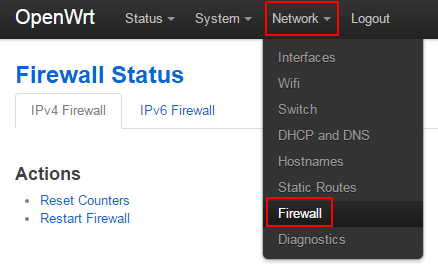
Open the OpenWRT web interface (LuCI) and go to Network → Firewall.
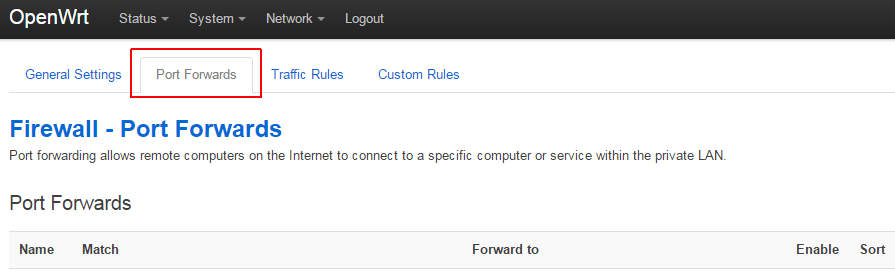
Then open the Port Forwards tab.
In older versions the fields for a new rule (New port forward) are at the bottom of the page; in newer ones click Add. Fill in:
- Name — a rule name, e.g. SSH, or something clearer for later like “SSH for New Server 05”.
- Protocol — the protocol you need; if you’re not sure or need both, choose TCP+UDP.
- External zone — leave wan: the request comes from the internet.
- External port — the outside port where the internal service will be reachable.
- Internal zone — leave lan.
- Internal IP address — the local IP of the server or device you are exposing.
- Internal port — the internal port.
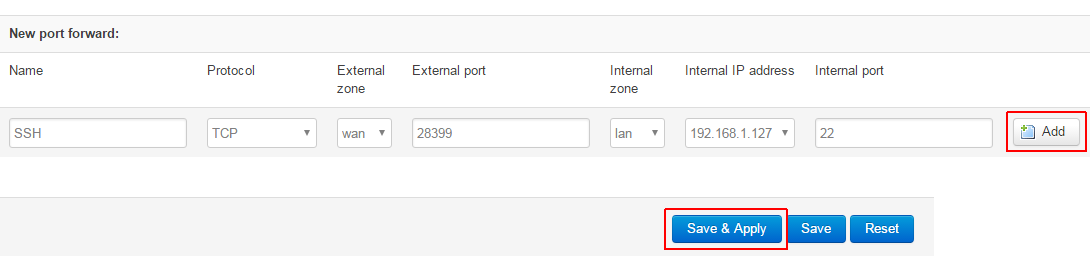
Click Add (or Save), then Save & Apply. The rule takes effect immediately — within a couple of seconds the external port is forwarded.
How to allow the forwarded port only from your IP
Usually that’s enough, but it’s worth protecting the internal service from scanners and brute-force bots. The simplest way is to allow the forward only from your own IP.
Find the rule in the list and click Edit.

The page with the rule’s advanced options opens (in newer versions it’s the Advanced Settings tab).
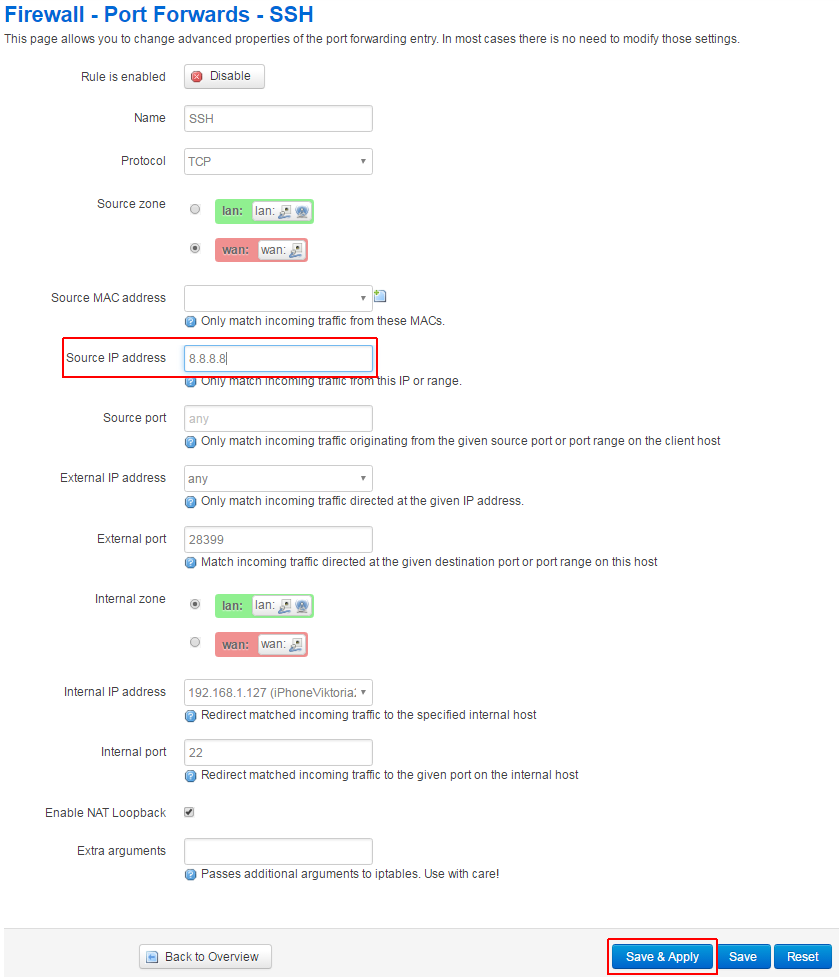
Find Source IP address — this is where you enter the address allowed to reach the forwarded port. In the screenshot I used a Google address as an example; you enter your own external IP. If it’s static, you’re lucky.
Instead of a single IP you can enter a subnet, for example 94.94.94.0/24.
Several different addresses (a question from the comments): you can’t enter them comma-separated in this field. Either create several identical rules with different Source IPs or, in OpenWRT 22.03 and newer, create an address set under Network → Firewall → IP Sets and use it in the rule.
Click Save & Apply and the changes take effect.


