OpenWRT: How to Access the Web Interface from WAN (Internet)
I flashed OpenWRT onto my TP-Link TL-WR842ND Wi-Fi router for more flexibility and features — and it really delivers.
Then I needed to open the OpenWRT web interface (LuCI) from the WAN side, i.e. from the internet. By default it is only reachable from the local network (LAN or Wi-Fi).
Important: a router web interface open to the whole internet is a favourite target for bots. It is safer to connect through a VPN (WireGuard) or an SSH tunnel. If you do open it, restrict access to your own IP (shown below) and use a strong password.
OpenWRT 22.03 and newer (firewall4)
- Network → Firewall → Traffic Rules → Add.
- Name: e.g.
Allow-LuCI-WAN; Protocol:TCP; Source zone:wan; Destination zone:Device (input); Destination port:80(or443if HTTPS is enabled); Action:accept. - On the Advanced Settings tab, put your external IP or subnet in Source IP address.
- Save & Apply.
The same from the command line:
uci add firewall rule uci set firewall.@rule[-1].name='Allow-LuCI-WAN' uci set firewall.@rule[-1].src='wan' uci set firewall.@rule[-1].proto='tcp' uci set firewall.@rule[-1].dest_port='80' uci set firewall.@rule[-1].src_ip='94.94.94.0/24' uci set firewall.@rule[-1].target='ACCEPT' uci commit firewall service firewall restart |
Older OpenWRT (iptables) — how I did it in 2012
Two lines were enough.
1. Go to Network → Interfaces and check the name of your WAN interface (eth1 in my case).
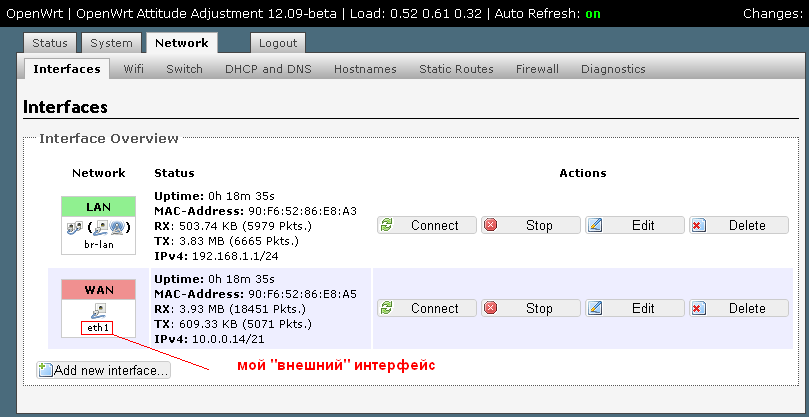
2. Go to Network → Firewall → Custom Rules and add the rule:
WAN='eth1' iptables -A input_rule -i $WAN -p tcp --dport 80 -j ACCEPT |
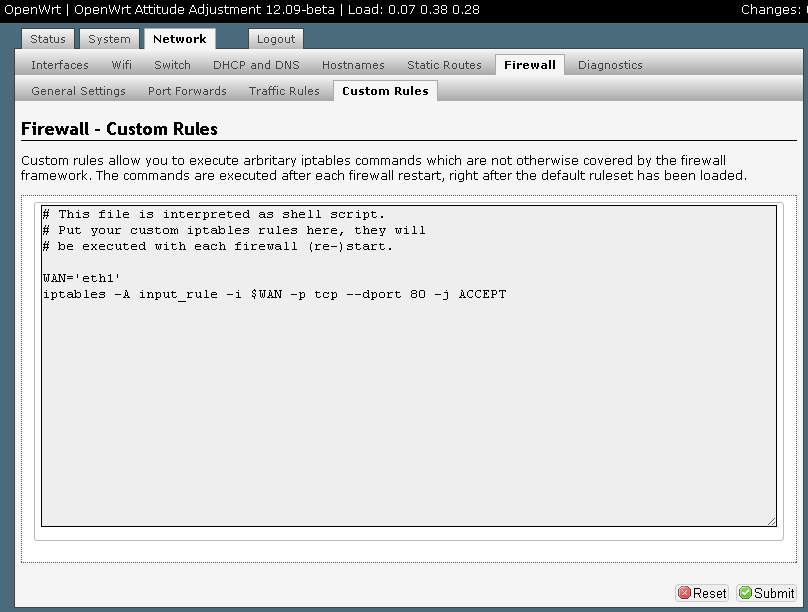
3. Reboot the router.
That’s it — the router can now be managed from the WAN side. If it doesn’t work, double-check the WAN interface name: yours may be different.
Related: how to set up port forwarding in OpenWRT.


