How to Copy a Raspberry Pi SD Card to an Image File (dd)
The task: copy the full operating system image (with all data) from the memory card of a Raspberry Pi into an IMG file, either as a backup or to move it to another identical Raspberry Pi.
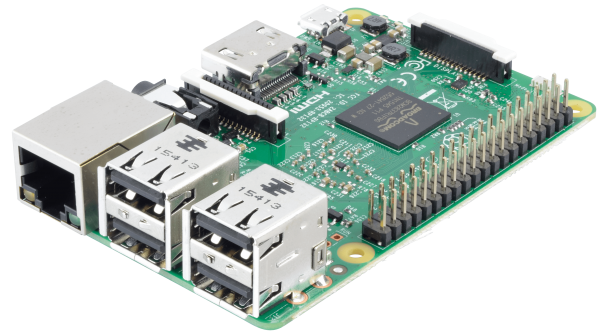
We do this on the Linux command line.
dd if=/dev/mmcblk0 of=/data/raspberry.img bs=4M
When dd finishes, it prints the results: how many records were read and written, how many bytes were copied, how long it took, and the average speed.
For me, copying took about 197 seconds at a speed of 10.1 MB/s.
After that, run the sync command:
sync
The sync command makes the sync system call. It must be run before shutting down the system to keep the file system consistent. It flushes all system buffers, which guarantees that file changes are actually written to disk.
To write the image to another memory card (the card must be the same size or larger), do this:
dd if=/data/raspberry.img of=/dev/mmcblk0 bs=4M
And run sync after that as well.
Be careful: double-check the device names before you press Enter. If you swap if and of, or point of at the wrong disk, dd will happily overwrite it. If the card is mounted on a PC instead of the Pi, its name is usually /dev/sdX (check with lsblk). Adding status=progress shows the copy progress.
This is a simple example of using dd on Linux.
