Raspberry Pi OS Shows Squares Instead of Letters in Console — Fix
Since I work with the small single-board Raspberry Pi, I’m starting a series of Raspberry Pi tips in the Linux section.
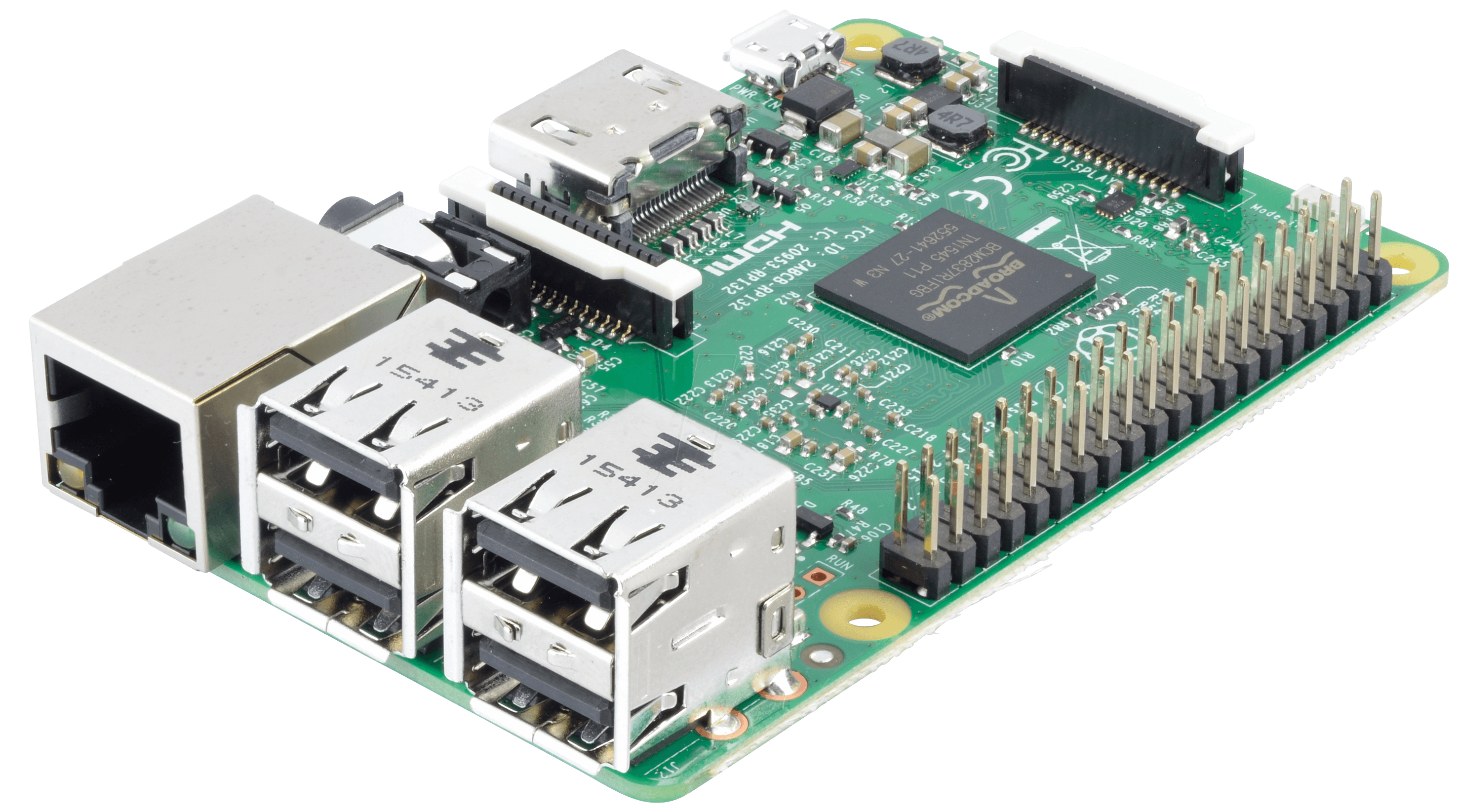
The official OS is Raspberry Pi OS (formerly Raspbian, based on Debian). I use the Lite version when I don’t need a desktop — a small memory card is plenty.
After installing and setting up a non-Latin language (Russian in my case), you may see squares instead of letters in the console. Don’t rush to reinstall — it’s easy to fix, and next time you’ll know the right order.
Basic setup with raspi-config
sudo raspi-config |
This tool handles the main Raspberry Pi OS settings (menu names differ slightly between versions):
- Expand filesystem — use the whole memory card (newer versions do this automatically on first boot);
- Keyboard — choose Generic 105-key PC, then Other → your layout (e.g. Russian), the layout switch keys (e.g. Control+Shift), no temporary switch, default AltGr, no Compose key;
- Locale — untick en_GB.UTF-8, tick your locale (e.g. ru_RU.UTF-8) and make it the default;
- Timezone — set your time zone right away.
Click Finish and reboot.
After rebooting, open something like mc — and there are the squares…
Fixing the squares
Run:
sudo dpkg-reconfigure console-setup |
The squares will get in the way in the menu, so here’s what to choose:
- Encoding: UTF-8
- Character set: Guess optimal character set (the last option)
- Font: Fixed or Let the system select a suitable font (the last option)
- Font size: 8×16
After that the console shows proper letters.
P.S. In raspi-config you can also enable the SSH server and do everything over SSH — I find that more convenient than sitting at a separate screen and keyboard.


