Ctrl+Z Deleted a Folder from the Desktop — Why and How to Get It Back
I recently learned how dangerous the Ctrl+Z shortcut can be — especially on the desktop!

In short: the folder isn’t deleted — it’s “undone”. Press Ctrl+Y right away (or right-click the desktop → Redo…) and it comes back with all its files. Don’t reboot or do anything else before that.
Why Ctrl+Z deletes a folder
What harm could these keys do? It’s not Delete or formatting a drive — it’s just Undo.
But in File Explorer and on the Windows desktop, it works just like in a text editor: it undoes your last actions one at a time. And one of those actions is creating a folder.
Here’s the scenario: you create a folder on the desktop, say “Documents”, put some important files in it, then accidentally press Ctrl+Z a few times. Windows undoes your actions one by one, reaches the folder creation — and the folder disappears. It isn’t even in the Recycle Bin.
How to get the folder back
The main thing is not to panic, not to reboot and not to do anything else. Right away:
- press Ctrl+Y — redo the undone action (as many times as you pressed Ctrl+Z);
- or right-click the desktop — the menu has an item to redo the undone operation.
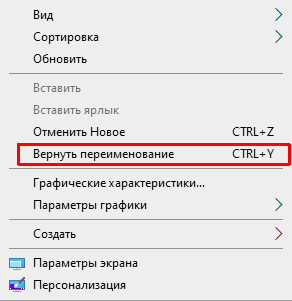
That’s how you save your “undone” files.
If Redo is no longer available
If you did other things after that, the Redo option disappears: the Recycle Bin is empty and the files are gone. Then you’re left with:
- Previous Versions. Right-click the Desktop folder (in your user profile) → Properties → Previous Versions. This works if restore points or File History are turned on.
- A file recovery program. The sooner you run it, the better the chances — before the disk space is overwritten. Install it on another drive or a USB stick, not on the drive the files were on.
That’s slow and not guaranteed, so it’s better to be prepared: keep copies of important files in the cloud (where to get free cloud storage) and use regular backups.
Cheat sheet:
- Ctrl+Z — undo (back);
- Ctrl+Y — redo (forward).