All Shortcuts Have the Same Icon in Windows 7 — How to Fix .lnk Associations
The other day I ran into a problem: a user had accidentally set every shortcut to open with Google Chrome, and all the shortcuts stopped working properly.
The shortcuts showed the Google Chrome icon and launched Chrome, which then tried to open them. But .exe files don’t work that way. This was a Windows 7 problem.

The shortcut problem is not hard to fix. I’ll describe one catch that you may run into while restoring the computer to normal.
To restore file type associations in Windows 7 and Windows Vista, there is a utility called Unassociate File Types, or unassoc.
It is small and simple:
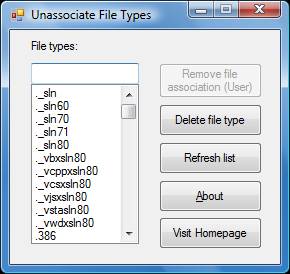
It will most likely help you. In my case, though, unassoc did not help, and here is why (I only understood it later).
unassoc requires administrator rights and asks for a password at startup if you work as a regular user. After I started the program, I found the .lnk file type, and the Remove file association (User) button was inactive.
I also tried importing .reg files from working machines, and that didn’t help either, for the same reason. The shortcut problem existed for just one user on that computer; other users were fine. And that user worked with regular user rights, not as an administrator. This is important!
When we run a program as the current user but with administrator rights, the program doesn’t see the problem, because the administrator doesn’t have it. We import registry keys, but system keys can’t be changed without running regedit as administrator.
In my case, none of that was needed anyway, because the problem was in the user’s own settings. A user with limited rights could not change system branches of the registry or any serious parameters, so he could only have broken his own settings. And the program and the registry imports, running with admin rights, never touched those branches.
So I found the registry key that has to be deleted by running regedit as the affected user, with no extra passwords. Just start the registry editor and find this key:
HKEY_CURRENT_USER\Software\Microsoft\Windows\CurrentVersion\Explorer\FileExts\.lnk
To fix it, you can download a registry file and run it as the affected user.
Download user-set-lnk.reg to repair the .lnk file association.
This .reg file doesn’t need special rights. It deletes the key and then writes the correct values back. After applying it, log off and back on, or simply restart.
If you ever have a problem with shortcuts, I hope my article helps 
