How to Reset the Waste Ink Counter on an Epson Stylus Photo T50 (PrintHelp)
Not long ago, our old Epson Stylus Photo T50 started blinking red lights and refused to work.
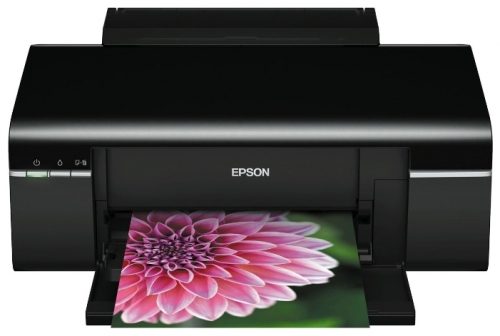
Usually this means the printer wants attention: you have to reset the ink level of the continuous ink system (CISS), or “reseat the cartridge emulator”.
When the Epson once again refused to print, I read many complaints about this problem.
The problem is odd: the printer doesn’t see the installed cartridges, even though the chip contacts are clean and seated well. It helps to pull out the whole assembly and put it back, pressing down firmly on each cartridge until it clicks. After that, there is a chance the printer will work for a while. This happens from time to time, and we got used to it.
But this time it was different! The usual actions didn’t help. The waste ink pad (“pampers”) was full, and the printer driver told me to contact a service center.
That was very unexpected, and of course I didn’t want to take the printer anywhere.
A friend had earlier recommended a program called PrintHelp, which we used to clean and prime the Epson ink system.
It turns out this good program can reset the waste ink counter of the Epson T50, and for free!
How to reset the waste ink counter of an Epson inkjet printer for free, step by step:
1. Download and install PrintHelp: printhelp.zip.
2. Run the program. It automatically finds and detects your printer.
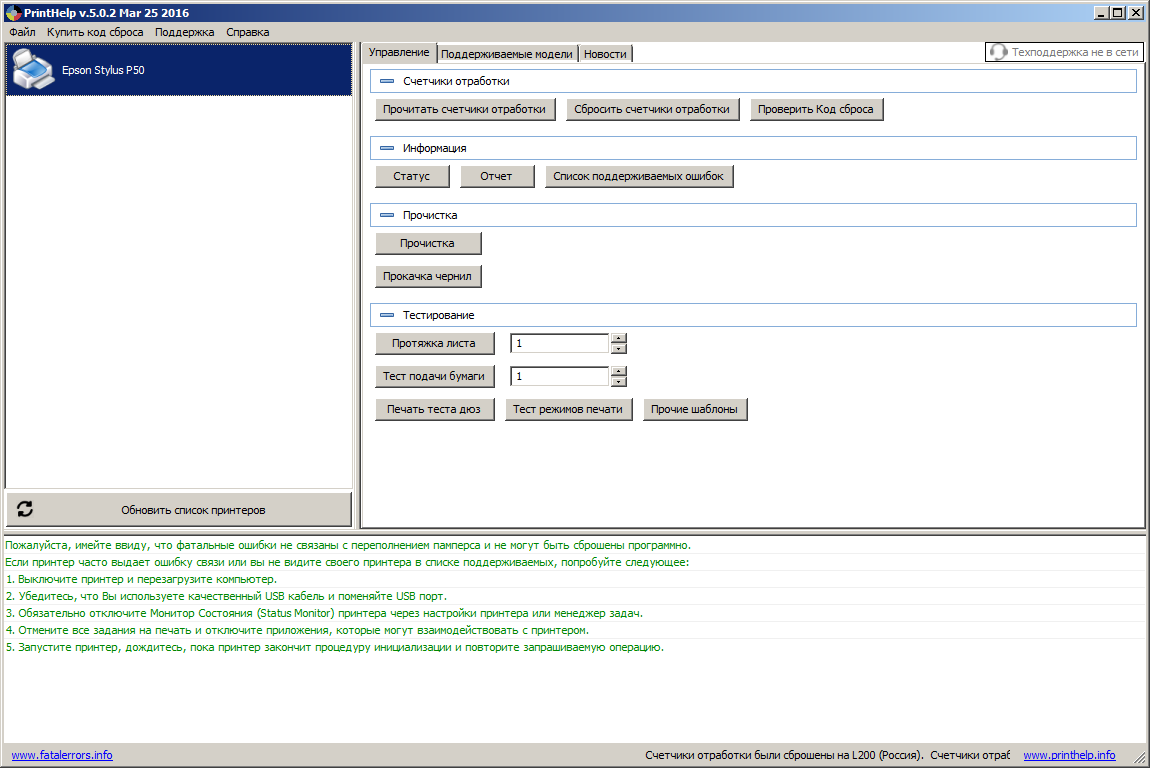
3. Click the button for resetting the waste counters. The program shows a warning, and after you confirm, PrintHelp performs the reset and asks you to turn the printer off.
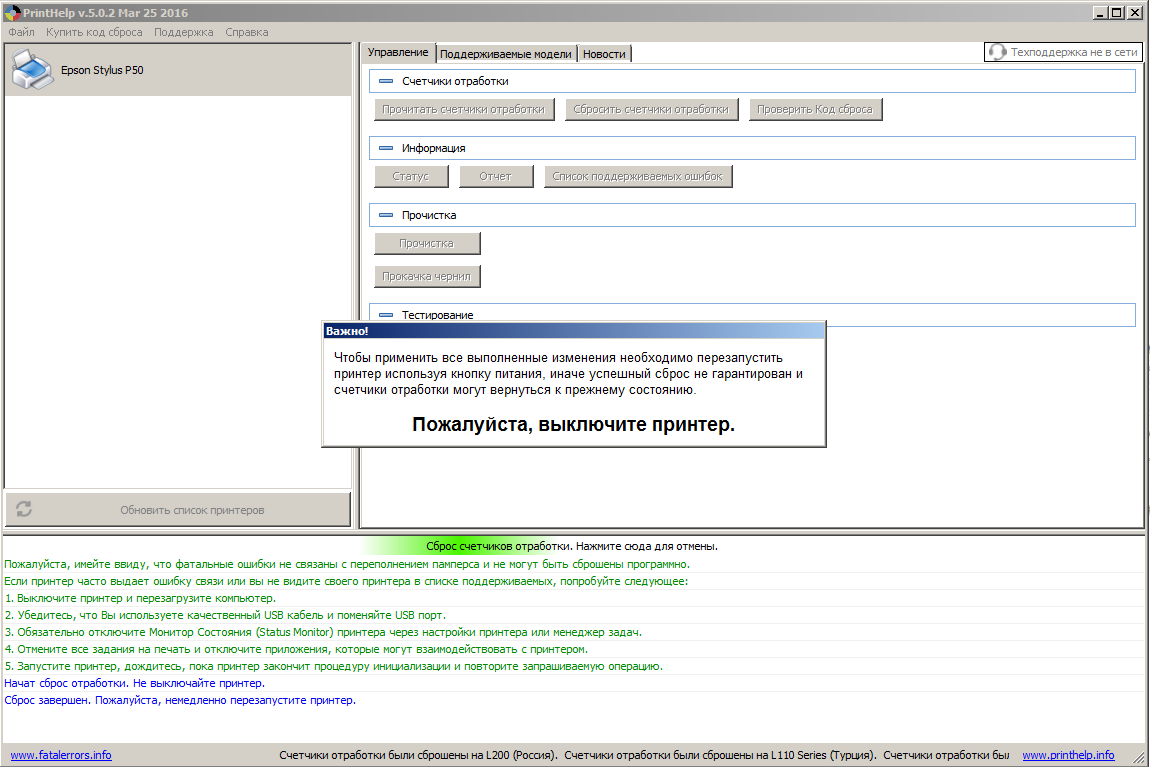
4. After the printer is off, turn it back on. It should start normally, and you can print!
A word of caution: the counter only tells the printer that the pad is full. If the absorber pad is really saturated, empty or replace it, or ink can leak inside the printer.
What PrintHelp can do (for Epson printers, though not for every model):
- check the current value of the waste ink counter;
- reset the waste ink counter (some models require a reset code);
- clean the print head;
- power cleaning of the print head for the initial fill;
- read and write the printer serial number;
- read and write the USB ID;
- read and write the HEAD ID;
- read and write the EEPROM;
- paper feed test;
- nozzle check and test;
- print a pattern to check different print modes;
- initialize or disable the PF deterioration offset;
- get the printer status;
- read the ink level;
- reset the ink level and waste ink counter in the L100, L200, and L800 printers for free (a software ink level reset is only possible for these three models).
The program has a simple, clear interface and plenty of free functions, which is exactly what you need to maintain Epson printers.
