HP LaserJet 1010 Driver for Windows 7 (x64) — How to Install
The HP LaserJet 1010 is an old workhorse: the model is well over ten years old, and yet it keeps printing 
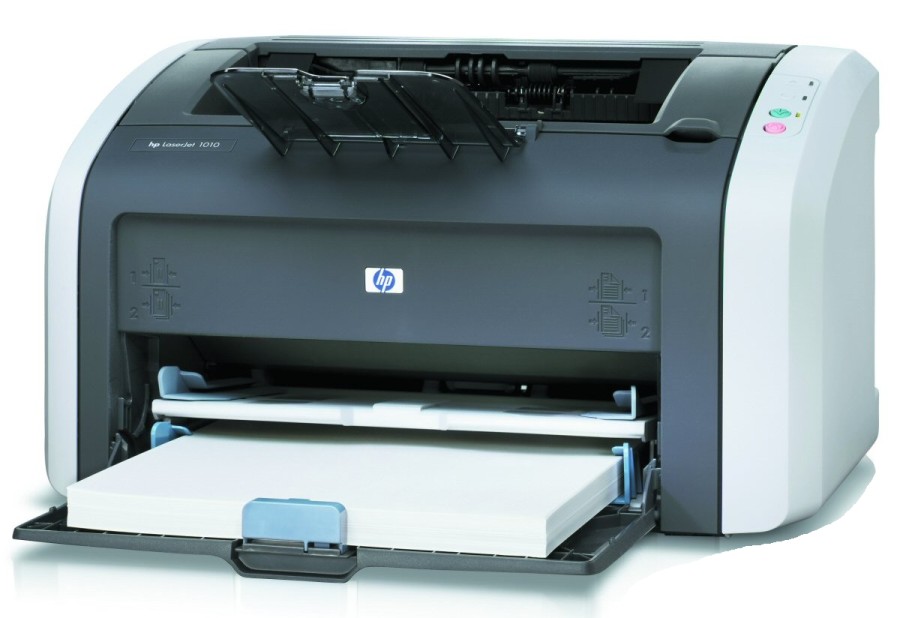
HP’s official site no longer offers HP 1010 drivers for Windows 7.
These are the systems HP lists drivers for:
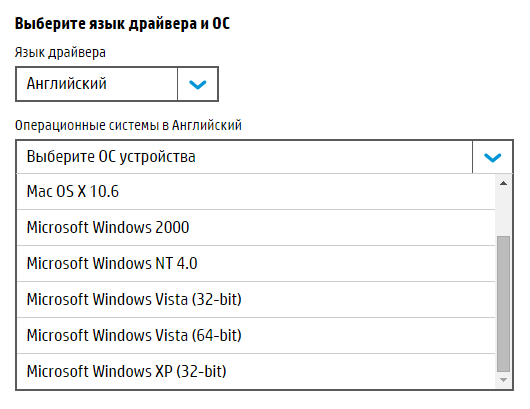
You can try the Vista driver in compatibility mode, but that’s a hassle — there’s a simpler way!
Installing the HP LaserJet 1010 on Windows 7 (tested on x64)
- Connect the HP LaserJet 1010 with a USB cable.
- Start → Devices and Printers → Add a printer.
- Add a local printer → keep the default port (DOT4_001) → choose a driver.
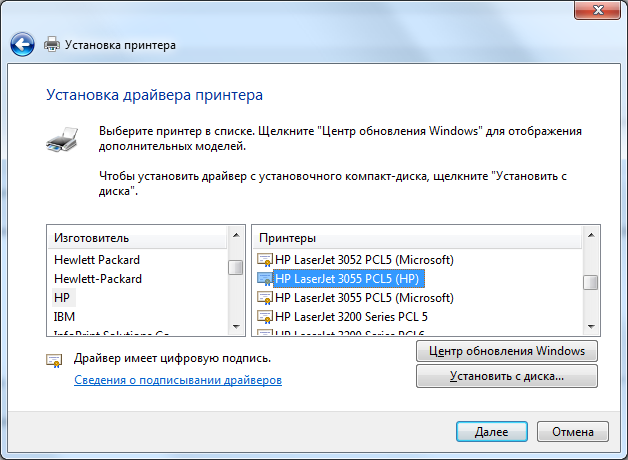
- I usually let Windows 7 look for drivers online (Windows Update) — the driver list refreshes in 3–5 minutes. Then pick HP LaserJet 3055 PCL5 from the HP list.
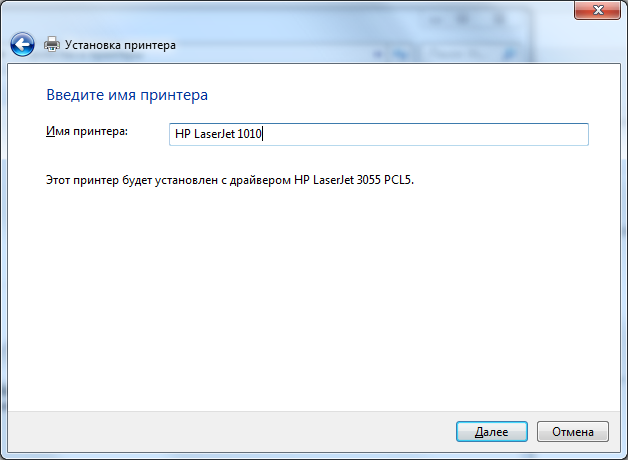
- Rename the printer so you don’t get confused — e.g. “HP LaserJet 1010” — and finish the installation.
- Print a test page — it should work. Bingo!
Update (2017): some readers got occasional errors with the 3055 driver. A more stable option is the HP Universal Print Driver PCL5 (64-bit): install it and, if it doesn’t pick up the printer by itself, assign it manually in Device Manager.


