USB PowerShare: How to Charge Your Phone from a Laptop That’s Off

Laptops these days actively promote USB PowerShare. Here’s what it is and how to use it.
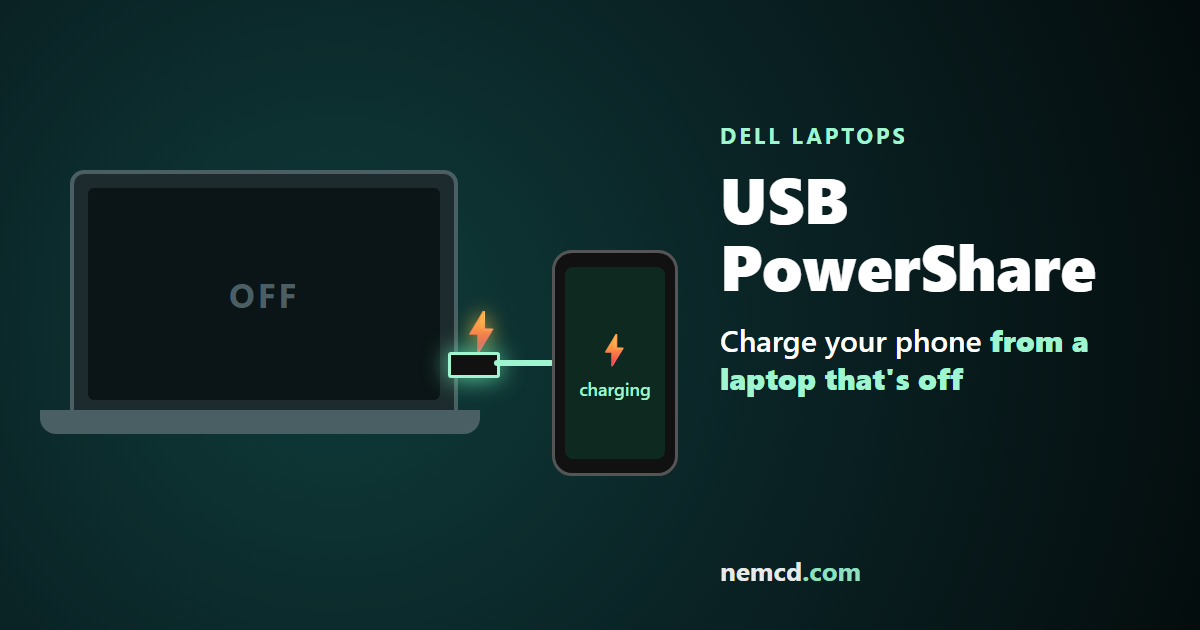
In short: USB ports with PowerShare charge your phone and other USB devices from the laptop’s battery, even when the laptop is off or asleep. Such a port is marked with a lightning bolt icon next to the USB symbol.
What USB PowerShare is
PowerShare is a feature of Dell laptops. A normal USB port on a switched-off laptop gives no power, but a PowerShare port keeps powering the connected device from the laptop’s battery. Handy on the road: you can use the laptop as a big power bank for your phone.
So that the laptop’s battery doesn’t drain to zero, you can set a threshold in the BIOS: for example, at 25% the phone stops charging, and the laptop still has enough left to power on.
How to turn on PowerShare
- Find the USB port with the lightning bolt icon on your laptop — PowerShare works only on that port.
- Enter the BIOS (on Dell, usually F2 at startup) and find the USB PowerShare setting — usually in the onboard devices section (System Configuration / Onboard Devices).
- Enable it and, if you like, set the battery threshold below which the port stops charging.
- Save the settings and exit the BIOS.
Behavior depends on the model: on some laptops the port charges when the laptop is off, on others only in sleep mode or when plugged in.
Similar features from other makers
- Lenovo — Always On USB: the port is marked with a battery icon and is enabled in the BIOS on the Configuration tab.
- HP — the HP Sleep and Charge USB port, on some models.
If there’s no such port, a switched-off laptop won’t charge your phone — keep the laptop on or asleep, and check Windows power settings to make sure the system doesn’t cut USB power.