How to Loop a Script in Linux: while true, until, cron and systemd

Sometimes you need to run a script over and over, that is, put it in a loop. Below are several ways to do it: from a simple bash loop to a systemd timer that survives a server reboot.
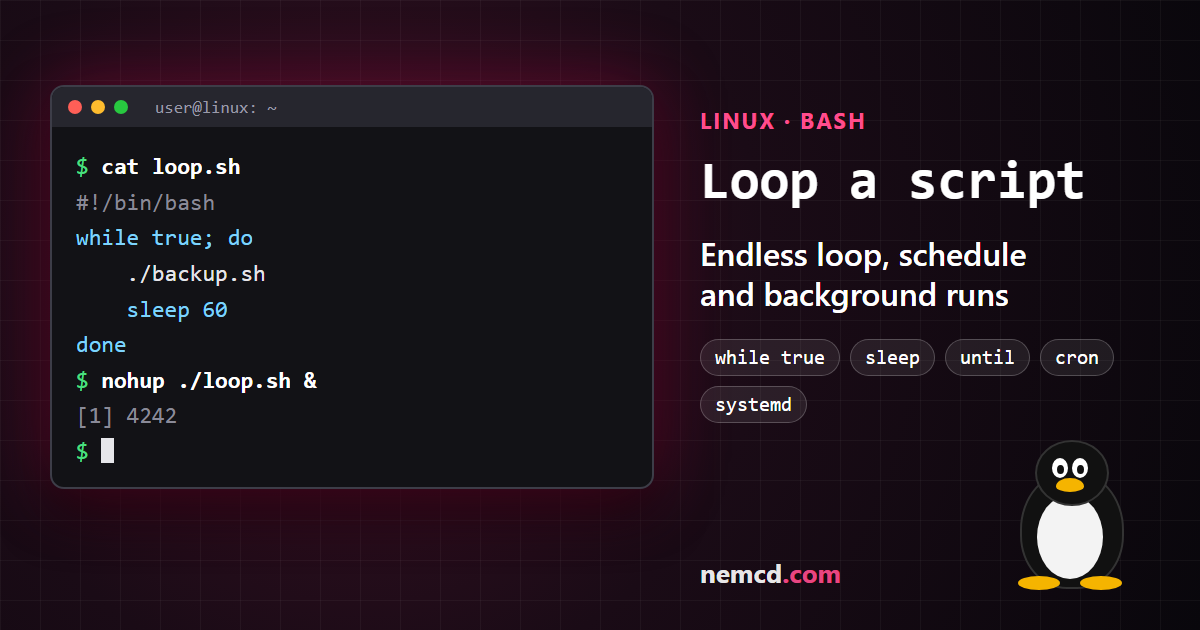
In short: to repeat a script nonstop, wrap it in while true; do … sleep 60; done. To run it on a schedule and after reboots, use cron or a systemd timer.
1. An endless while true loop
The simplest option is a separate wrapper script, loop.sh:
#!/bin/bash
while true; do
    /path/to/script.sh
    sleep 60
done
sleep is a must: without a pause the loop spins nonstop and eats the CPU. To stop the loop, press Ctrl+C. Instead of while true you can write while : — it’s the same thing.
2. Repeat while a command succeeds (or until it does)
while command; do … done runs the loop body as long as the command exits without an error (exit code 0). until works the other way around: it repeats until the command succeeds. For example, wait until a website starts responding:
until curl -sf https://example.com >/dev/null; do
    sleep 5
done
echo "The site is up"
3. Repeat a set number of times
If you need, say, 10 runs rather than an endless loop:
for i in $(seq 1 10); do
    /path/to/script.sh
done
In bash you can also write it as for i in {1..10} or for ((i = 1; i <= 10; i++)).
4. Keep the loop running after you log out of SSH
If you start a loop in a regular SSH session, it stops when you disconnect. Run it in the background with nohup, and the output goes to a file:
nohup ./loop.sh > loop.log 2>&1 &
Another option is to run it inside screen or tmux, so you can come back to the session later.
5. watch — repeat a command and see the result
If you just want to keep an eye on a command’s output, use watch. For example, refresh disk usage every 5 seconds:
watch -n 5 df -h
6. cron — run on a schedule
For regular tasks you don’t need a loop at all — cron is enough. Open your crontab:
crontab -e
and add a line, for example, to run every 5 minutes:
*/5 * * * * /path/to/script.sh
The shortest interval in cron is one minute. Cron jobs keep running after a reboot, and you don’t need to keep anything open.
7. A systemd timer
On modern distributions you can use a systemd timer instead of cron: it keeps a log of runs and doesn’t start the task again while the previous run is still going. You need two files. The service, /etc/systemd/system/myscript.service:
[Unit]
Description=My script

[Service]
Type=oneshot
ExecStart=/path/to/script.sh
And the timer, /etc/systemd/system/myscript.timer — first run a minute after boot, then every 5 minutes:
[Unit]
Description=Run my script every 5 minutes

[Timer]
OnBootSec=1min
OnUnitActiveSec=5min

[Install]
WantedBy=timers.target
Enable it and check:
sudo systemctl daemon-reload
sudo systemctl enable --now myscript.timer
systemctl list-timers
To see the script’s output, run:
journalctl -u myscript.service
Which one to choose
- You need the script to run right now while you watch —
while trueorwatch. - You need to wait for an event (the site is up, a file appeared) —
until. - You need regular runs, including after reboots — cron or a systemd timer.
If the script has to run around the clock, it’s handier to keep it on a VPS rather than your home computer — for example, on Vultr (affiliate link).