How to Add a Cron Job on a QNAP NAS
I once needed a script to synchronize some directories of a QNAP data storage with a remote Linux server.
I decided to use rsync for this. I wrote the script and tested it in the console of the QNAP NAS.
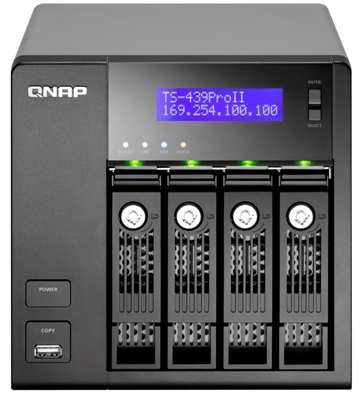
All that is left is to add a job to the cron scheduler, and I’ll show you how.
Adding a job to cron on a QNAP works just like on ordinary Linux, because the box runs Linux (in my case: Linux NAS-ZERG 3.4.6 #1 SMP Thu Jun 12 03:44:38 CST 2014 i686 unknown).
1. Run the command that edits the crontab file of the current user:
crontab -e
and add a line with the command to run. In my case, I run it every 5 minutes of every hour:
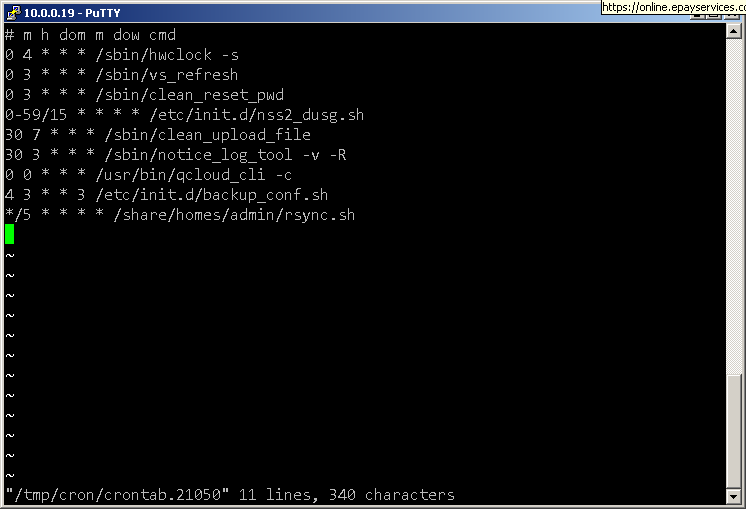
That is probably too often for many people; if so, change it according to the format description:
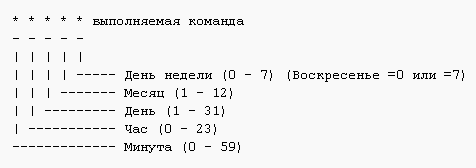
Editing and saving the file works like in the vi editor (the main thing: a colon, then wq to save and quit, or q! to quit without saving).
2. Apply the changes:
crontab /etc/config/crontab
3. Restart the daemon:
/etc/init.d/crond.sh restart
4. Look at the new crontab:
crontab -l
or like this:
cat /etc/config/crontab
If your script is written correctly, it will run on the schedule you set.


