Mount SFTP as a Drive in Windows (NetDrive 2.6 Free) and Automate Backups
I have written before about various ways to back up data from Unix and Linux servers (for example from FreeBSD to Windows with Robocopy — see Robocopy download and basic usage). Now I want to share the latest version of my method, which I managed to fully automate.
Recently I learned about new possibilities in NetDrive, the program I use to connect to servers over SFTP.
I spent a lot of time looking for a completely free alternative to NetDrive — something like FileZilla or WinSCP, but where the server is mounted as a drive instead of just connected. There seems to be nothing like that. There are some solutions, but they are far from NetDrive in looks and reliability.
The simplest and most correct way is to buy NetDrive or a paid analog and be happy. But a license with one year of support costs $50, and a lifetime license with support $100 (at the time of writing, 2020). Not everyone can easily spend that much. Licenses sometimes stop working for some reason or other restrictions appear, and after a while you may not need the program at all.
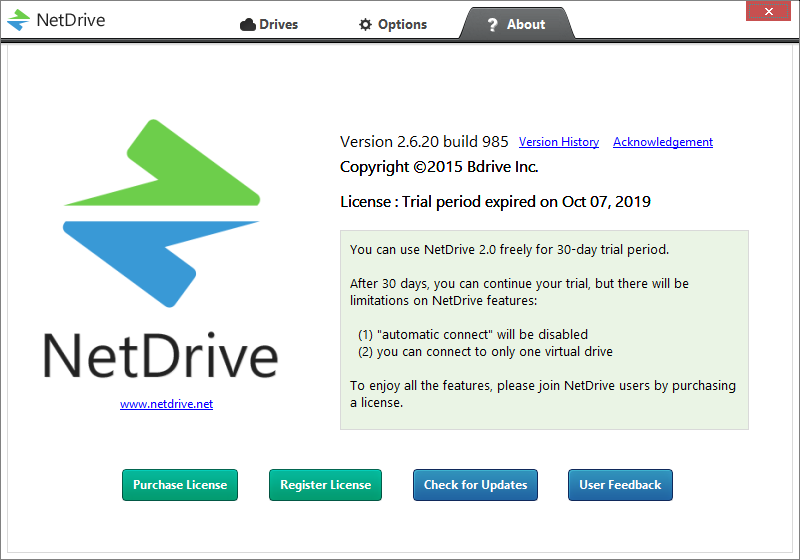
NetDrive 2.6 in limited (free) mode
In the limited mode of NetDrive 2.6 you can mount one drive at a time, manually, and the speed is capped. If you are in no hurry, with automation this option is perfectly usable.
It is not easy to find the last version of the 2.6 branch that still has the limited mode, so I’m putting it online — it doubles as advertising for an excellent program!
Download NetDrive2 2.6.20.985: link (original, unmodified version)
It turns out the NetDrive package contains nd2cmd.exe, a command for mounting a drive in console mode — you can use it in scripts!
First, create a connection to your FTP, SFTP, DAV… server, assign a drive letter such as X and check the connection manually. If it works, great.
Backup script example
An example of connecting NetDrive from a backup script:
taskkill /IM netdrive2.exe /f

echo "Mount disk - X"
"c:\program files\netdrive2\"nd2cmd.exe -c m -n Site
robocopy x:\ c:\BackupSite\ %key_robo%:c:\log\sync.log
taskkill /IM netdrive2.exe /f
The robocopy options (define this variable at the top of the script; together with :c:\log\sync.log it expands to /LOG:c:\log\sync.log):
set key_robo=/MIR /R:3 /W:3 /MIR /NDL /TEE /NP /X /LOG
How this part of the script works, step by step: taskkill forcibly kills the process netdrive2.exe, in case NetDrive is already running and something is connected. Then we mount the drive, whose connection is named Site. Robocopy synchronizes the folders we need with the given options, and when the sync is finished we kill the NetDrive process again. Done.
That is how I back up 5 servers — you can do more. You can also connect under the same letter without creating a connection in the NetDrive interface.
An example of mounting a drive in the console with nd2cmd (it comes with NetDrive):
"c:\program files\netdrive2\"nd2cmd.exe -c m -t ftp -u sftp://site.com:22 -a user -p password -d S -n Site
This is how you unmount the drive:
"c:\program files\netdrive2\"nd2cmd.exe -c u -d f
Unmounting did not always work, or the next mount did not always go well afterwards, so killing the process with taskkill is more reliable.
This way, with the help of automation in a script, you can use NetDrive 2.6 in free mode.


