Excel Sheet Tabs Missing at the Bottom — How to Get Them Back
Sometimes the sheet switching buttons — the tabs at the bottom of the window — disappear in Excel.
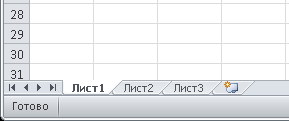
In short: turn on “Show sheet tabs” in Excel’s options. If it’s already on, drag the left edge of the horizontal scroll bar to the right — the tabs may simply have been squeezed out of view.
1. Turn on “Show sheet tabs”
Excel 2010 and later: File → Options → Advanced → section “Display options for this workbook” → tick “Show sheet tabs”. Look carefully: there are many more options than in older versions.

Excel 2007: Office button → Excel Options → Advanced → “Show sheet tabs”.
Excel 2003: Tools → Options → View tab → tick “Sheet tabs”.

2. The tabs are squeezed — drag them out
Sometimes the tabs are on but you can’t see them: the horizontal scroll bar has been stretched across the whole width and covers them. Hover over the left edge of the scroll bar (the cursor becomes a double arrow) and drag it to the right — the sheet tabs appear on the left.
3. Options are ticked but there are still no sheets
- The sheets are hidden. Right-click any visible tab → Unhide… and choose the sheet. If no tabs are visible at all: Home → Format → Hide & Unhide → Unhide Sheet.
- The workbook window is minimized or moved. The tabs are at the bottom of the workbook window — if part of it is off-screen, you can’t see them. Click View → Arrange All, or maximize the workbook window.
- Check whether the file has other sheets. Sometimes a workbook really has just one sheet.