How to Change Bitcoin Core Data Folder Location (-datadir & wallet.dat)

By default, Bitcoin Core (and its close cousin Dogecoin Core) installs its data directory on the system drive, and that folder grows fast. Back in 2015 the full blockchain took around 50 GB; today an archival node exceeds 780 GB (or roughly 12 GB if you enable pruning with -prune=550). Moving the blockchain database and wallet.dat to another drive is often essential.
 It is best to move heavy blockchain files off a small system SSD onto a dedicated volume
If your C: drive has plenty of space, the client works out of the box. Whenever Windows gets reinstalled or you need the blocks stored on a larger partition (such as D:), the -datadir startup switch solves the problem cleanly.
Where Bitcoin Core Stores wallet.dat by Default
Before moving any files, check the default Windows data folder locations:
- Classic and existing installs: the blockchain database and
wallet.dat(or thewalletsfolder) live in%appdata%\Bitcoin(typicallyC:\Users\<Name>\AppData\Roaming\Bitcoin). - Fresh Bitcoin Core v28.0+ installs: new installations default to
%localappdata%\Bitcoin(C:\Users\<Name>\AppData\Local\Bitcoin), though if an existingRoaming\Bitcoinfolder is already present, the client keeps using it. - Dogecoin Core: uses
%appdata%\DogeCoinby default.
Setting a Custom Data Folder via -datadir
To keep your blockchain and wallet.dat in plain sight – and safe from accidental formatting when wiping Windows – create a desktop or folder shortcut with the -datadir parameter. For example, you can place a store subfolder right next to the executable (as shown below with Dogecoin Core) or point to a dedicated directory like D:\BTCdata.
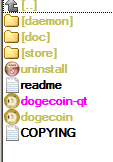 A local store subfolder next to the executable keeps wallet files neatly together
Right-click your shortcut, open Properties → Shortcut → Target, and append the flag after the closing quote:
"C:\Data-local\Dogecoin\dogecoin-qt.exe" -datadir=store
The exact same syntax applies to bitcoin-qt.exe. If your data path is on another drive (or contains spaces), wrap the target path in quotes if needed:
"C:\Program Files\Bitcoin\bitcoin-qt.exe" -datadir=D:\BTCdata
Once that shortcut is on your desktop, launching the wallet will always point straight to your custom folder instead of silently creating an empty wallet.dat back on C:. Just remember one golden rule before moving anything around: always copy your wallet.dat (or wallets directory) to an offline USB backup first.