How to Create a Shadow Copy in Windows 10 and 11 (and Schedule It)
First, to avoid confusion: a shadow copy is not the same as System Restore in Windows 10’s System Protection. It’s a more useful tool for people who know what they’re doing.

The Volume Shadow Copy Service (VSS) is a Windows service that can copy files even while they’re in use, including system and locked files. System Restore and backup software (Acronis True Image, Paragon and others) rely on it.
On Windows Server, shadow copies are configured in the GUI: which disk, how much space, how often. Windows 10 has no such interface — only System Restore.
Here’s how to create a shadow copy in Windows 10 and schedule it.
Create a shadow copy
Run as administrator:
wmic shadowcopy call create Volume=c:\
Windows 11 note: WMIC is deprecated and is disabled by default in recent Windows 11 builds. Use PowerShell (as administrator) instead:
Invoke-CimMethod -ClassName Win32_ShadowCopy -MethodName Create -Arguments @{Volume="C:\"}
It takes a few seconds and creates a shadow copy of drive C. To check: This PC → properties of drive C → Previous Versions.
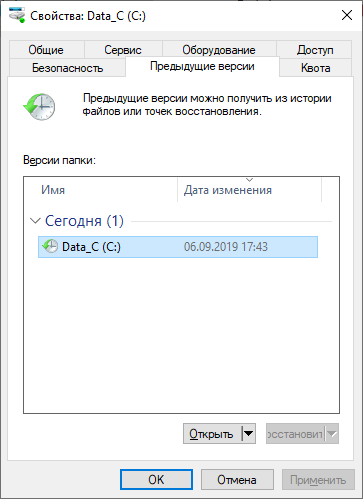
Change the drive letter to make shadow copies of other drives.
Schedule it with Task Scheduler
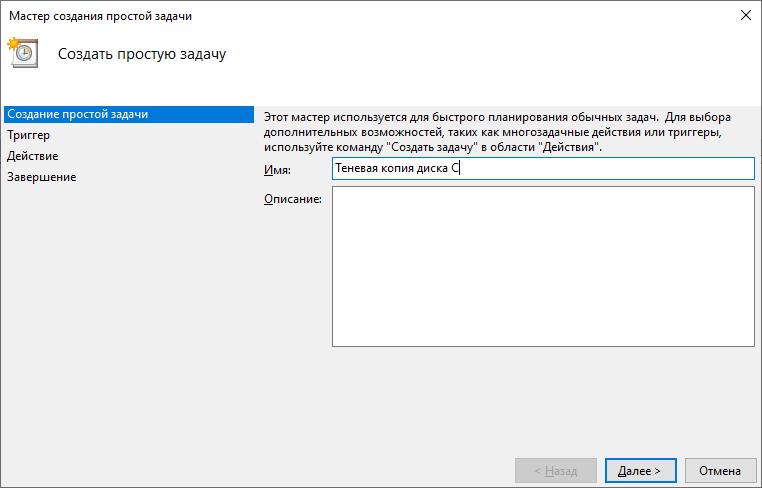
Create a new task and give it a name.
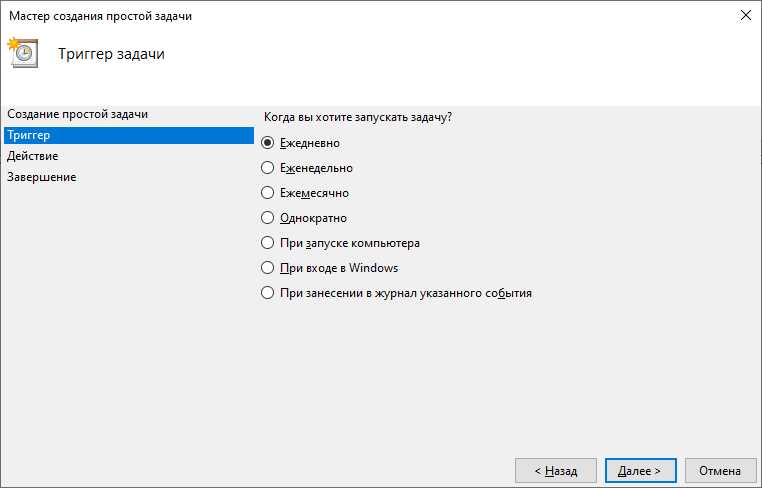
Set how often the shadow copy should be created.
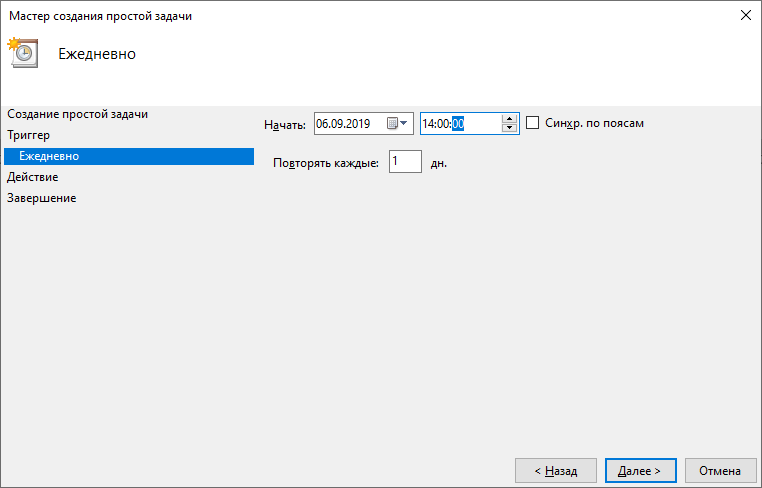
Pick the time. I usually do it once a day; on work servers twice a day — in the morning before work and in the evening after.
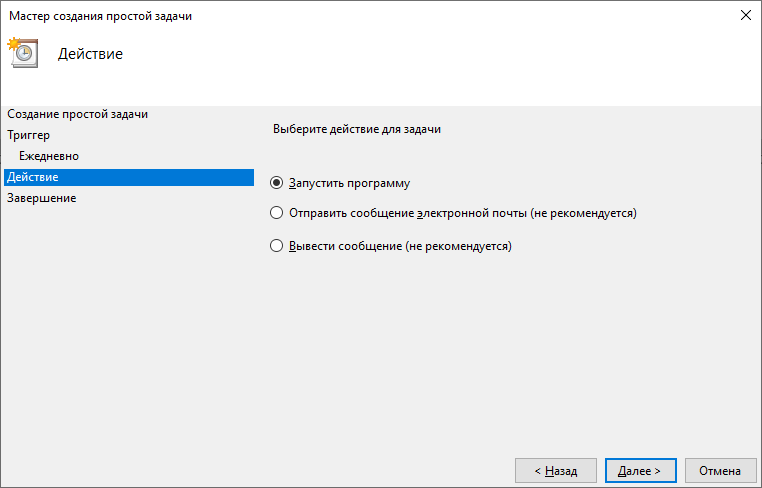
Action: Start a program.
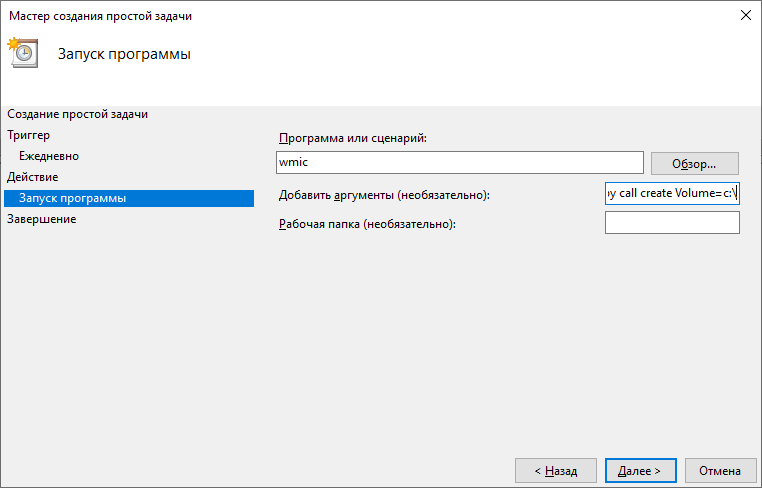
Program:
wmic
Arguments:
shadowcopy call create Volume=c:\
(on Windows 11 use powershell with the argument -Command "Invoke-CimMethod -ClassName Win32_ShadowCopy -MethodName Create -Arguments @{Volume='C:\'}")
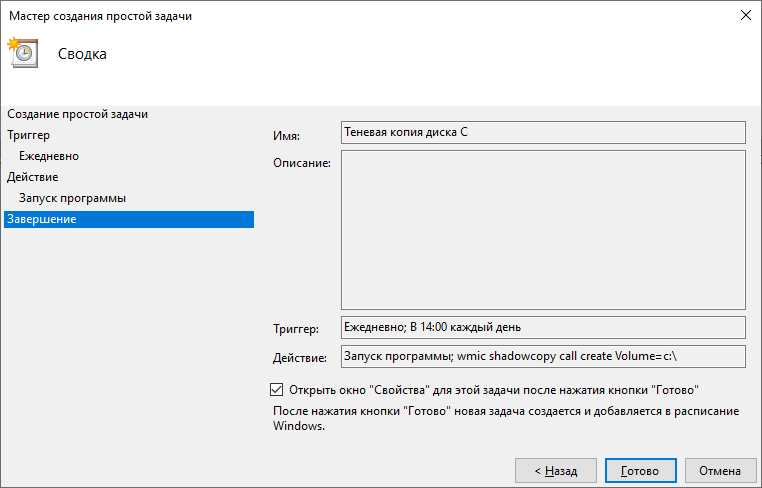
Tick Open the Properties dialog…
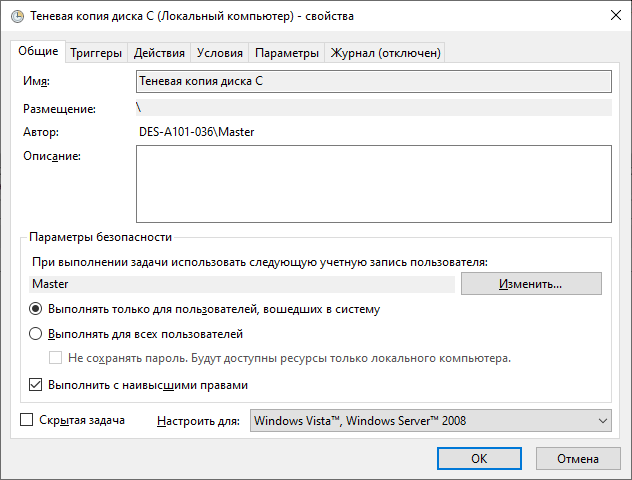
…and Run with highest privileges — shadow copies can’t be created or deleted without admin rights.
Done. Run the task once from Task Scheduler and check that the copy appears.
Deleting shadow copies
Delete all shadow copies:
wmic shadowcopy delete
or vssadmin delete shadows /all. You can schedule this monthly before the creation task, but then all old copies go at once. Deleting all but the latest is possible via Disk Cleanup.
Shadow copies take little space; on servers I usually kept about six months of them, depending on disk size and how much data changes.
A shadow copy is a great addition to backups — but not a replacement for them!


