Canon MF3228 Won’t Scan on Windows 10 x64 — Fix
I ran into a problem: the Canon MF3228 multifunction printer doesn’t scan on 64-bit Windows 10!
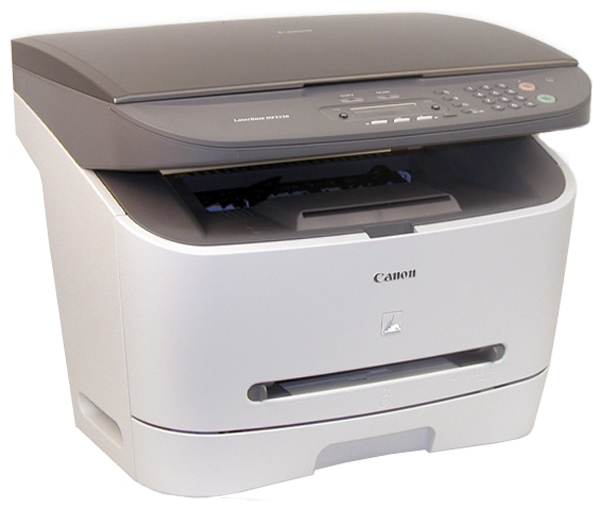
A good old workhorse, the Canon MF3228 
The problem is Canon’s own MF Toolbox utility. The drivers exist and work, but the utility doesn’t see the scanner. Printing works fine on both 32-bit and 64-bit Windows.
People try various patches, Toolbox versions from other models and other Windows versions. I didn’t bother: the built-in Windows scanning tool is good enough.
Scanning without MF Toolbox
- Install the drivers for your system. Official source: Canon’s i-SENSYS MF3228 support page, Drivers tab, choose Windows 10/11 64-bit (the MF3220/MF3240 MFDrivers package).
- Create a shortcut, type
wiaacmgras the location and run it.
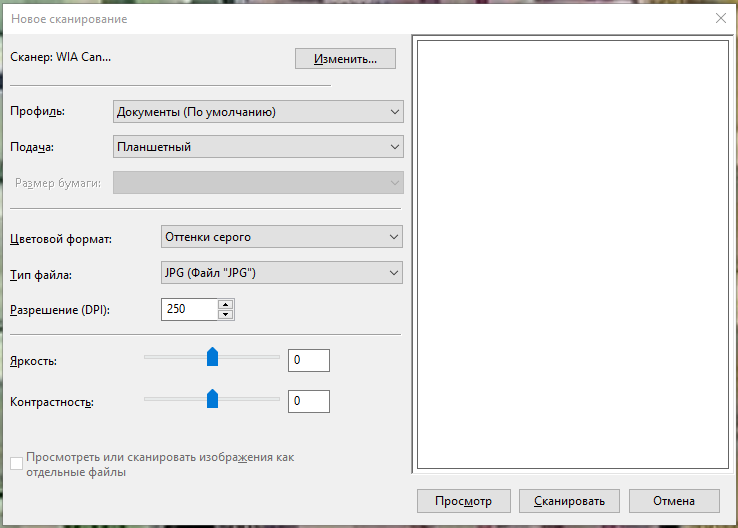
You may need to select the scanner manually with the Change button. Instead of wiaacmgr you can also use Windows Fax and Scan or the Windows Scan app from the Microsoft Store.
If a small window with a computer and scanner hangs
Sometimes the scanning tool doesn’t start, and this window just hangs instead:
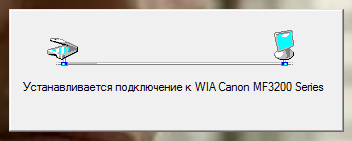
There is a way out: stop the Windows Image Acquisition (WIA) service. You can do it in Task Manager (Services tab → stisvc → right-click → Stop) or with a small script. Sometimes you need to repeat it a couple of times.
After that the scanner works until the next reboot. When the window hangs again, stop the WIA service again.
It’s a workaround, of course, but it works, and the old Canon MF3228 stays in service.


