Word Freezes or Not Responding: What to Do and How to Save Your Document (Word 2016)
I have seen this a couple of times: when you close even a new, empty document, Word 2016 starts to hang. It can be worse — Word freezes in the middle of work with “Not Responding” in the title bar, and the document isn’t saved.
In short: if Word freezes, first wait a couple of minutes and don’t force-close it. Most often add-ins are to blame: test with winword /safe and disable the ones you don’t need. Below is how to rescue an unsaved document and what else helps.
Word is frozen right now: how to save your document
- Wait 1–3 minutes. Word is often busy with a big file, AutoRecover or the printer and comes back to life. Then save the document right away (Ctrl+S).
- If it doesn’t recover, close Word from Task Manager (Ctrl+Shift+Esc → Microsoft Word → End task).
- Open Word again: the Document Recovery pane appears on the left with the last AutoRecover version. Open it and save it under a new name.
- If there’s no pane: File → Info → Manage Document → Recover Unsaved Documents.
By default AutoRecover saves every 10 minutes, so you can only lose the latest edits. You can shorten the interval in File → Options → Save → Save AutoRecover information every … minutes.
Cause #1: add-ins
In my case the cause turned out to be simple — add-ins from other programs were getting in the way. It’s easy to check: press Win+R and run
winword /safe
Safe mode starts Word without add-ins. If it doesn’t freeze there, an add-in is to blame.
To disable add-ins in Office 2016 and 2019: File → Options → Add-ins → Manage: COM Add-ins → Go.
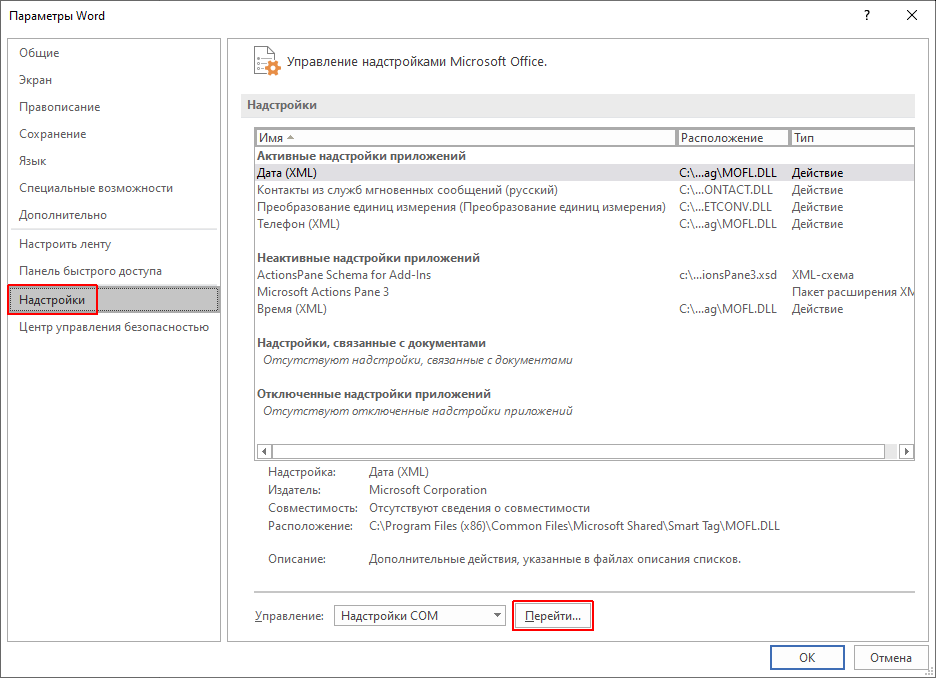

(there are no add-ins in the screenshot now)
Untick or remove the add-ins you don’t need and restart Word — it should close quickly. That fixed it for me.
Other reasons Word freezes
- The default printer is unavailable. Word talks to the printer when it opens and lays out a document; if that’s a network printer that is switched off, Word hangs. Set an available printer or “Microsoft Print to PDF” as the default.
- A damaged Normal.dotm template. Close Word and rename
%AppData%\Microsoft\Templates\Normal.dotm— Word creates a new one on the next start. - Hardware acceleration. With old video drivers, File → Options → Advanced → Disable hardware graphics acceleration helps.
- A damaged Office install. Control Panel → Programs and Features → Microsoft Office → Change → Quick Repair.
Word 2016 saves big files slowly
Another problem I met in Word 2016 was slow saving and freezing with a multi-page file of about 500 pages and ~10 MB.
Neither installing updates nor tuning helped. In Word 2019 the same file saved in 2 seconds out of the box. The way out in this case is to move to Office 2019.