How to Set Application Priority in Windows 10 (Task Manager, start, Registry)
Windows 10 is a good operating system: fast, stable, and good-looking. But some things are tucked away from the average user so they don’t get in the way. A bit like macOS, only there it is much worse.
At some point I needed to raise the priority of one program. I noticed that when you minimize it, it starts working noticeably slower in the background.
The question was: how do you set the priority of an application in Windows 10?
It turns out you still change it in Task Manager, just a bit deeper than before.
Method 1: Task Manager
Open Task Manager with Ctrl + Shift + Esc, or run taskmgr from the Run dialog (Win + R).
Click More details, open the Details tab, and select the process you need. Then right-click it, choose Set priority, and pick the priority you want.
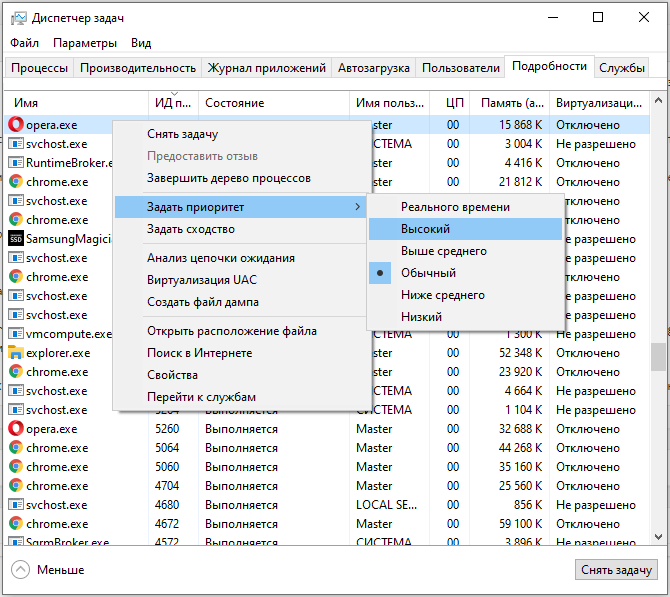
The web says Windows 10 may later change the priority you set. I haven’t run into that. I set High, and the program really did run faster. The priority lasts until the process exits.
Method 2: the start command
You can also set the priority when you launch a program with the start command. It has these switches:
- /low starts the application in the IDLE priority class.
- /normal starts the application in the NORMAL priority class.
- /high starts the application in the HIGH priority class.
- /realtime starts the application in the REALTIME priority class.
- /abovenormal starts the application in the ABOVENORMAL priority class.
- /belownormal starts the application in the BELOWNORMAL priority class.
For example:
start "" /high "C:\Program Files\Some App\app.exe"
Method 3: the registry
Another way to always start a process or program with a certain priority is to edit the Windows 10 registry.
You can set a startup priority for any process manually in the registry.
Registry key:
HKEY_LOCAL_MACHINE\SOFTWARE\Microsoft\Windows NT\CurrentVersion\Image File Execution Options
To set the priority a process must always start with, create a key with its name in the branch above.
Inside it, create one more key (a subkey) named PerfOptions, and in it create a DWORD (32-bit) value named CpuPriorityClass with one of these decimal values: 1, 3, 5, 6, or 8.
- 1 is Idle (low);
- 3 is High;
- 5 is BelowNormal;
- 6 is AboveNormal;
- 8 is Normal.
The registry method is the hardest, because you have to fight the permissions on the keys.
I struggled with changing permissions on the key and with inheritance, and I tried the psexec.exe utility. It wouldn’t let me create a subkey with an arbitrary name, only a standard one.
In the end it worked when I applied it from a .reg file. Example test.reg:
Windows Registry Editor Version 5.00

[HKEY_LOCAL_MACHINE\SOFTWARE\Microsoft\Windows NT\CurrentVersion\Image File Execution Options\Winword.exe\PerfOptions]
"CpuPriorityClass"=dword:00000003
Create a file with any name and the .reg extension and run it. Microsoft Word (if you have it) will then start with high priority by default. You can check it by launching the program and looking at its priority as described in the first method.
There are also third-party programs for changing priority. That’s up to you; I don’t like extra programs, and I try to use standard Windows tools as much as possible.
