How to Switch from IDE to AHCI in Windows 10 Without Reinstalling
AHCI replaced the time-tested but outdated IDE controller mode. If, for whatever reason, your PC runs in the old IDE mode, you can easily switch the controller to the newer, more capable AHCI mode.
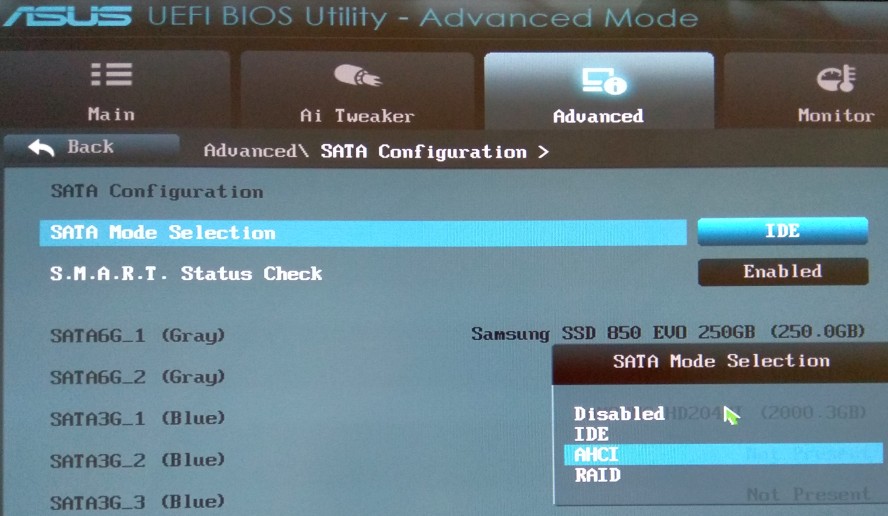
If you simply change the mode in BIOS, Windows will stop booting and hang on a blue screen. First you have to prepare the operating system for the change.
If you understand what you are doing and are ready for an experiment I have tested myself, let’s start.
1. Prepare Windows 10 for AHCI
Run the registry editor regedit as Administrator.
Go to this registry key:
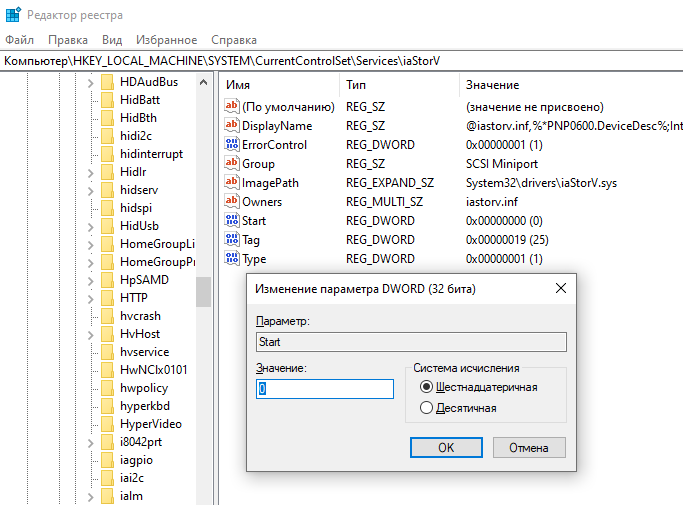
HKEY_LOCAL_MACHINE\SYSTEM\CurrentControlSet\Services\iaStorV
Set the Start value to 0.
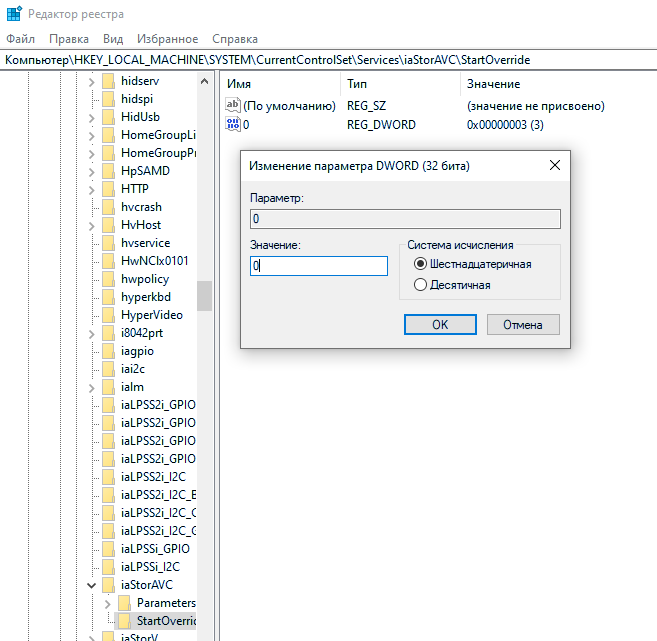
In the neighboring key:
HKEY_LOCAL_MACHINE\SYSTEM\CurrentControlSet\Services\iaStorAV\StartOverride
set the value named 0 to 0.
In this key:
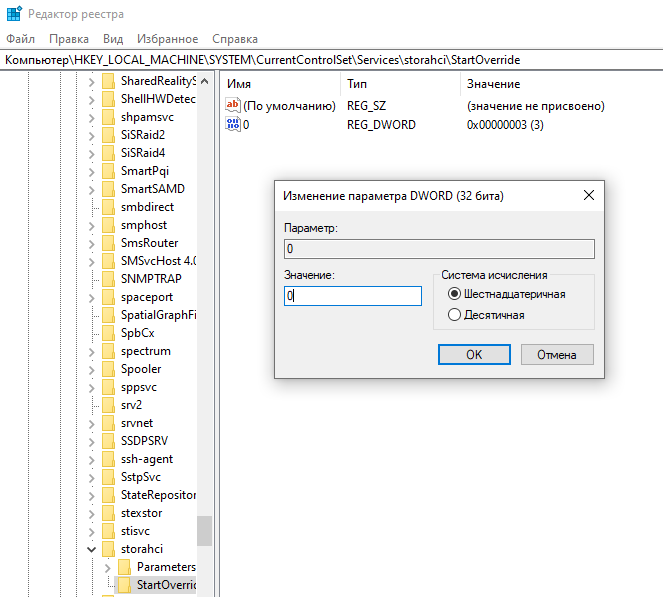
HKEY_LOCAL_MACHINE\SYSTEM\CurrentControlSet\Services\storahci
set Start to 0.

And in the subkey:
HKEY_LOCAL_MACHINE\SYSTEM\CurrentControlSet\Services\storahci\StartOverride
set the value 0 to 0.
Close the registry editor.
2. Restart and enter UEFI or BIOS
Enable AHCI mode for the drive controller, save the changes, and restart.
This is the UEFI of an Asus P8H67-M Pro motherboard.
3. Boot Windows 10
Windows will install the drivers it needs by itself; you can update them later with the manufacturer’s drivers.
If Windows 10 fails to boot, try booting it in Safe Mode and fix things from there.
If you don’t want to edit the registry by hand, I made a .reg file: download ahci.reg.
Save it and run it, and it will make the four changes described above.
It all went smoothly for me, with no dancing around. If something goes wrong, you can switch back to IDE mode in BIOS.
