How to Export a SketchUp Model to STL for 3D Printing
SketchUp is a program for creating 3D models of houses, hangars, garages, roofs, various home additions and even spaceships.
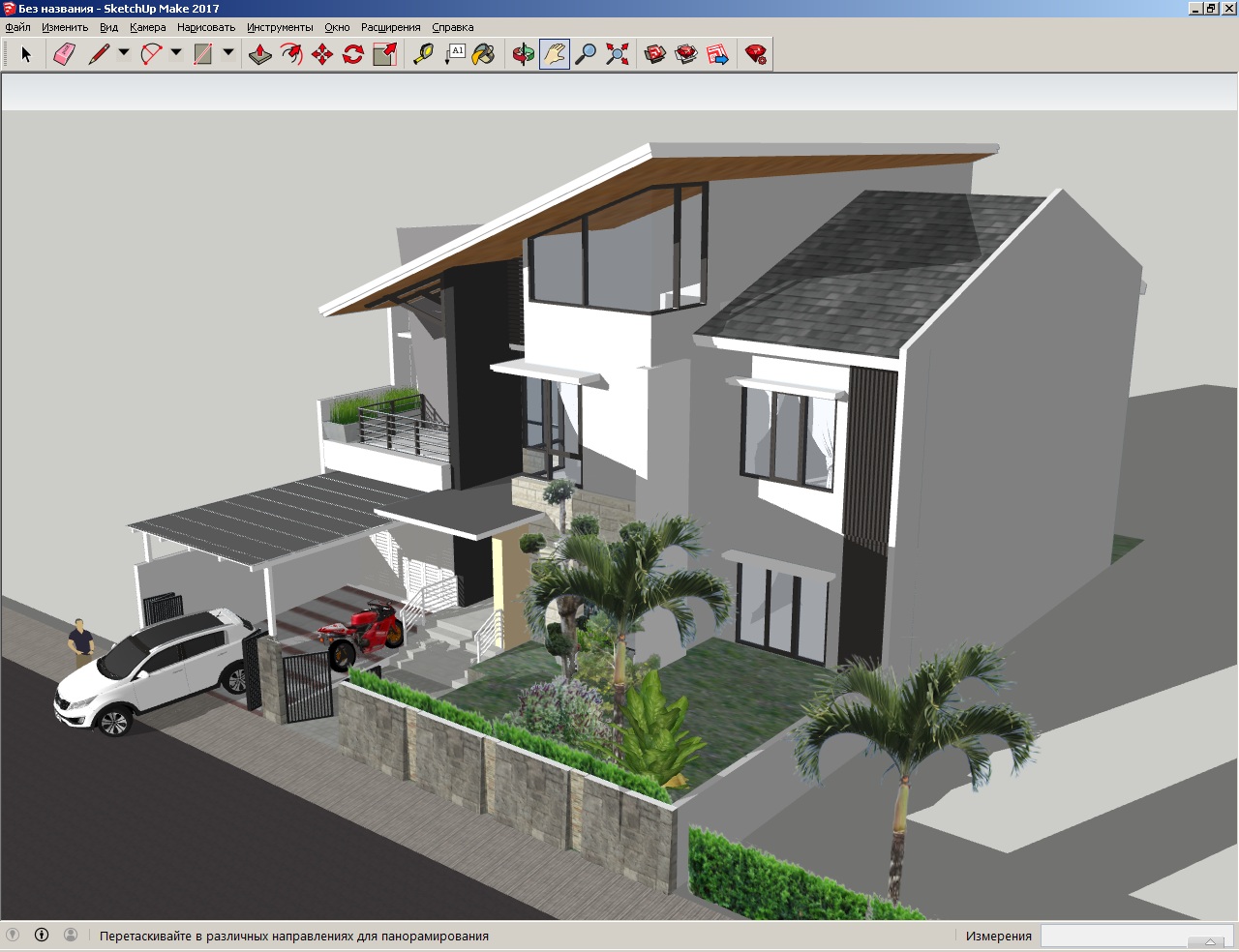
With SketchUp you can easily add details and change textures and sizes of your models and industrial objects with great precision.
For 3D printing fans, SketchUp can export to the STL format.
Which version do you have? SketchUp Pro 2018 and newer exports STL natively: File → Export → 3D Model, then choose STL in the file type list. See the SketchUp help page on STL. The rest of this article is for SketchUp 2017 and older (where I wrote it), which need a free extension.
How to export to STL in SketchUp 2017
By default, even if you have the Pro version, there is no .stl export. To get it you need to install a special plugin (in SketchUp plugins are called extensions); the extension is free.
1. Download the extension SketchUp STL — Import and Export STL files for 3D printing from the Extension Warehouse. You have to complete a simple registration before downloading the extension file.
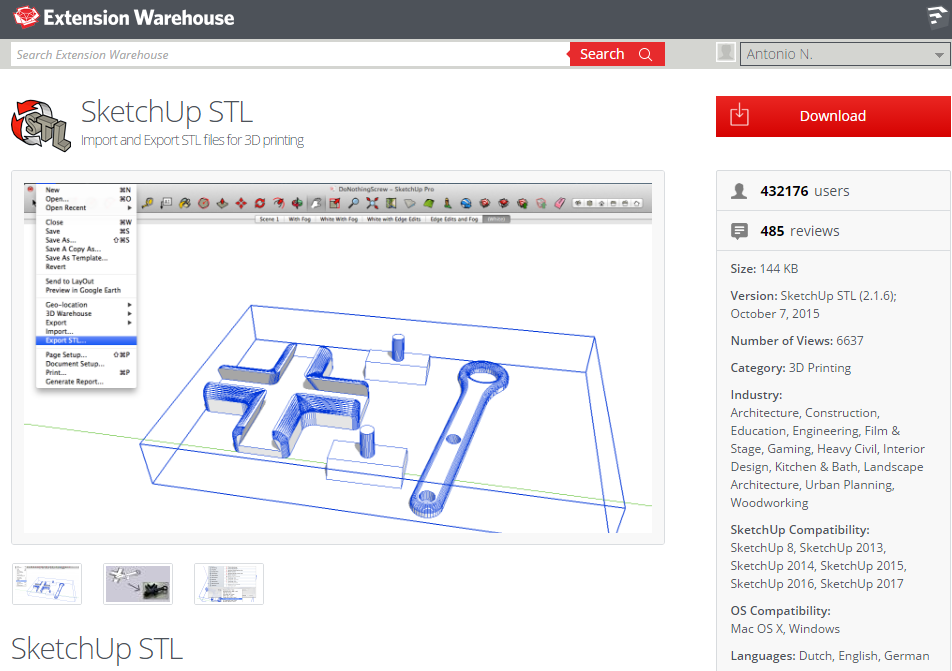
After downloading you get a file with a name like sketchup-stl-2.1.6.rbz.
2. In SketchUp open the top menu Window → Extension Manager.
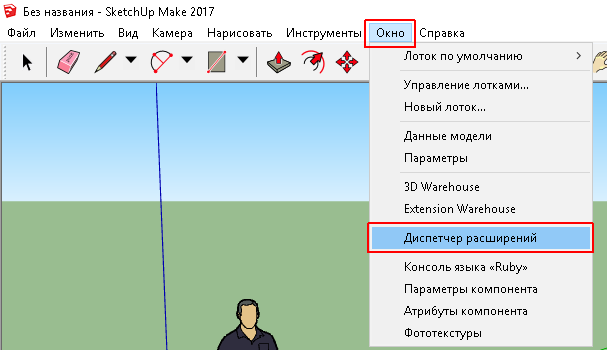
To avoid the error saying the extension is unsigned and won’t enable, go to the Extension Manager settings: click the gear icon on the right.
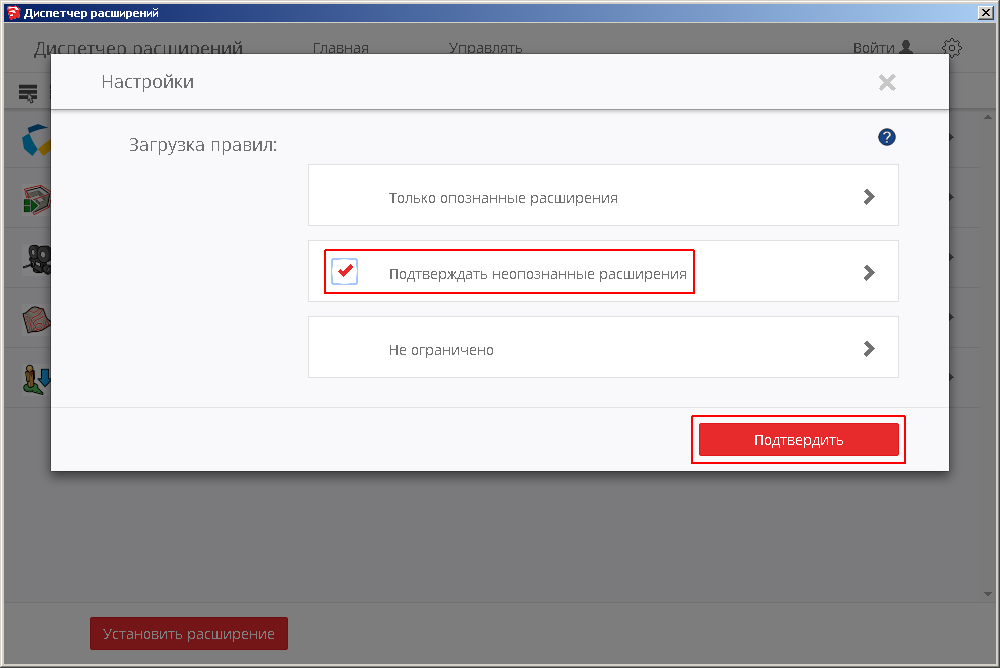
Switch the mode to Approve Unidentified Extensions (the option that asks for confirmation for unidentified extensions) and confirm with the button.
3. Now you can install the downloaded STL extension. Click Install Extension.
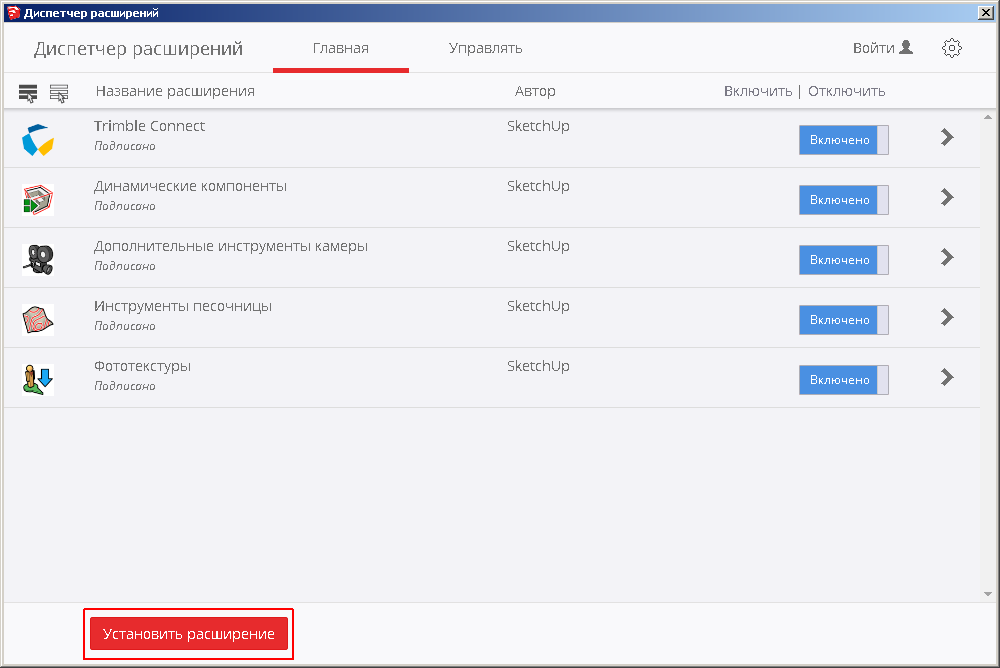
Find the extension you downloaded earlier and add it.
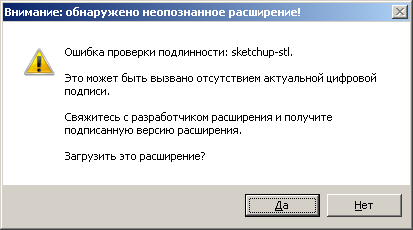
4. The Extension Manager will warn that an unidentified extension was found. That is fine: the extension isn’t signed, but it will install and work normally. Agree.
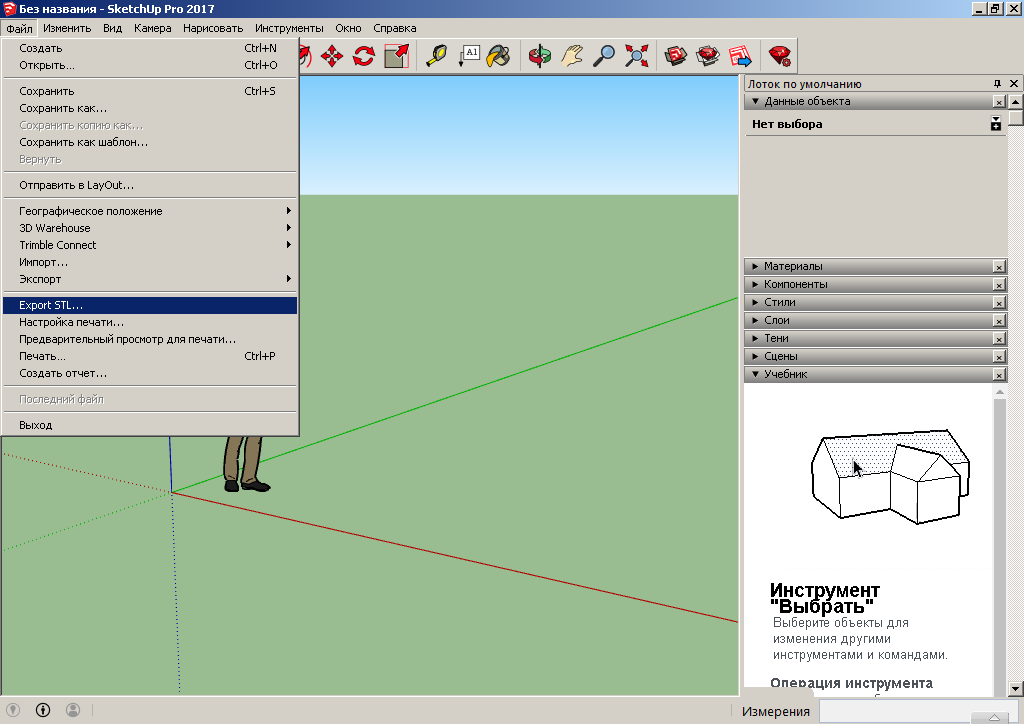
5. After these steps the STL export extension is installed and you can try the export: choose File → Export STL in the menu.
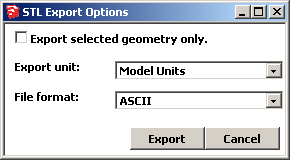
Set the options you need and export.
Unsigned extension error
The most important thing is to switch the security mode in the Extension Manager settings (step 2). Otherwise, after installation the plugin will not work and SketchUp will report that the extension is unsigned (Unsigned).
