Windows 7 is a good system — beautiful and reliable, with a more convenient security and permissions model.
Among its nice features is good support for all sorts of hardware and the ability to automatically download drivers from the Microsoft store.
Searching for and installing drivers by hand is almost never needed now, because drivers for standard hardware are already included with the operating system or arrive through Windows Update.
Sometimes automatic driver search and installation from the internet happens only on request, or this option is turned off altogether. Then you need to know how to enable driver updates over the internet.
Files ending in .eml (Electronic Mail) are the universal RFC 5322 standard for saving an individual email message – complete with sender headers, formatted HTML body, inline images, and embedded PDF or ZIP attachments – inside a single portable file. You will commonly run into .eml files when downloading messages from webmail, accounting portals, legal correspondence, or corporate archives.
Older versions of Windows included native email viewers out of the box (Outlook Express in Windows XP and Windows Mail in Vista), but Microsoft dropped built-in mail clients starting with Windows 7 – leaving many Windows 7, 10, and 11 PCs unable to open .eml files on double-click. Here are the four quickest ways to view any .eml message and save its attachments.
On ASUS laptops and motherboards, after installing chipset drivers (or running Disk Cleanup / Windows updates), a popup error box sometimes appears at every login: C:\Windows\chipset\driver\hotfix\asusSetup.ini is lost (or a similar path pointing to asusSetup.ini inside Temp).
Your chipset drivers are already installed and working fine – the popup only happens because the ASUS installer cleaned up its temporary extraction folder without removing its scheduled post-reboot task in Windows.
Before reinstalling Windows, auditing office machines, or writing deployment scripts, it is handy to dump a clean list of every installed application to a text or CSV file. Linux makes this a one-liner (dpkg -l), and modern Windows 10/11 has equally clean command-line options.
Fastest method on Windows 10 and Windows 11: open Command Prompt or PowerShell and run winget list > apps.txt – Windows’ built-in package manager writes all installed apps and versions straight to a file.
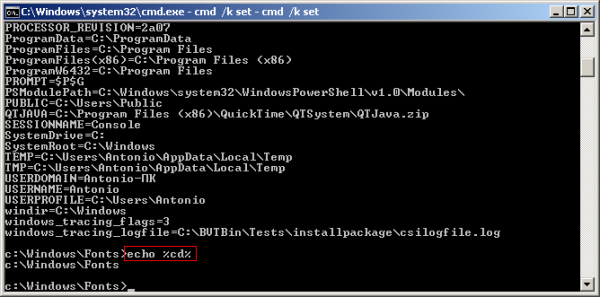
Sometimes a script needs the path of the folder you are currently in. The location of the current folder (the full path) is stored in the %CD% variable.
In short:%CD% is the command prompt’s current folder, %~dp0 is the folder where the batch file itself lives. To go to another folder use cd path, to another drive cd /d D:\path, to list the contents dir.
Below: how to find and change the current folder in cmd, how %CD% differs from %~dp0 in batch files, and which other variables come in handy in scripts.