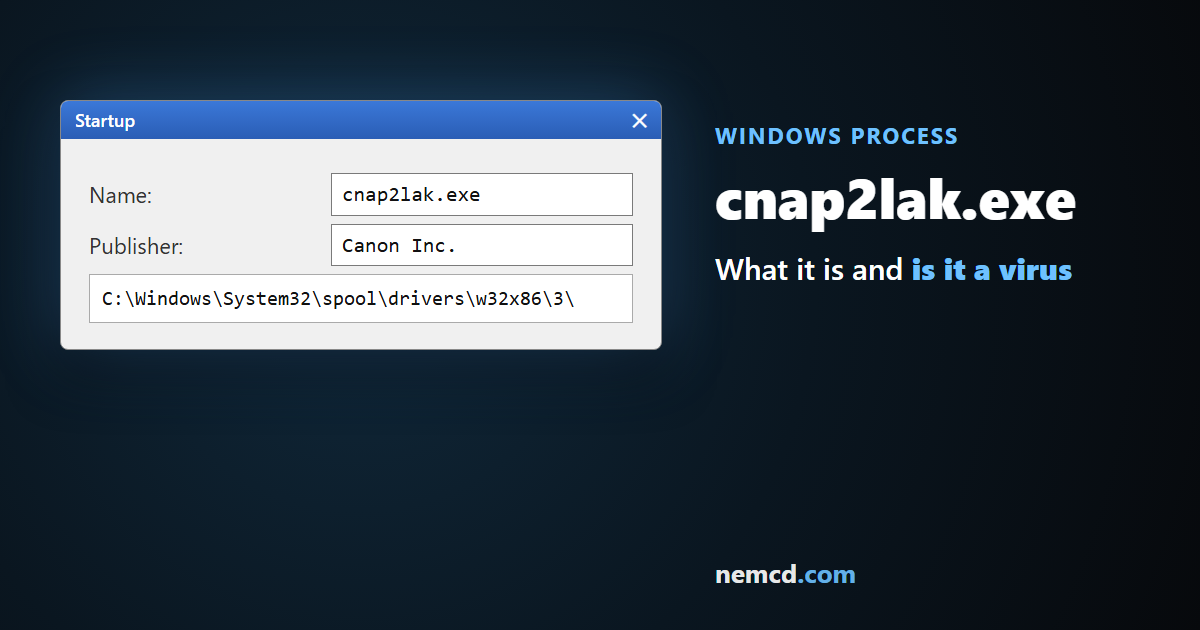
While cleaning up a computer, I saw a process called cnap2lak.exe in startup. I don’t have it on my own machine, so I suspected something bad. But it turned out to be fine.
cnap2lak.exe is the Canon Advanced Printing Technology Printer Status Window Launcher, part of the Canon printer driver package. It’s not a virus. Read full article →
When installing Microsoft SQL Server (or setting up Zabbix, Prometheus, or Windows Performance Monitor perfmon.exe), the setup wizard can halt at PerfMonCounterNotCorruptedCheck with the error: “Performance counter registry hive consistency check failed. The performance counter registry hive is corrupted.”
On a healthy Windows system, the Registry subkeys Perflib\009 (English) and your localized language subkey (such as Perflib\019) contain long multi-line Counter and Help lists. If those values are missing or out of sync with Last Counter / Last Help, SQL Server refuses to continue.
Back on an internet link behind a FreeBSD router, browsing suddenly stopped working on a Windows Vista laptop (and later the exact same issue appeared on Windows 7). Everything looked puzzling at first: nothing seemed to have changed on either the router or the laptop, ping worked, websites opened fine through a proxy, and nearby Windows XP machines worked normally – yet browsers on Vista and Windows 7 refused to load pages. I even restored Vista from its recovery image, and got the exact same result: ping worked, websites did not.
Internet not working through a router on Windows 7 and Windows Vista – real-world root cause and step-by-step troubleshooting
At first, I simply routed the few Windows 7 and Vista clients through another gateway, but eventually I sat down to track down the real culprit in the router’s NAT and firewall configuration. Below is both the exact FreeBSD ipfw/NAT fix and a complete checklist for home and office routers when Windows 7 or Vista shows “No internet access” (yellow exclamation triangle) or fails to load websites while ping still succeeds.
How do you show hidden files in Windows 7? By default Windows hides hidden files and folders, so you can’t find them in Explorer. Turning them on takes a minute, and there are several ways to do it.
The first way is the one Microsoft itself suggests in Windows Help (pictured above), but there are simpler ones. Read full article →