How to Uninstall Kaspersky from a Mac
Sometimes I have to deal with Apple hardware — today, for example, a question came up about Kaspersky antivirus on Mac OS.
The license key expired long ago, there’s no desire to buy a new one, and anyway I feel like trying something new.
And the new thing is the cheerful yellow-and-green 360 Total Security for Mac (by the way, I recommend this antivirus for Windows too).
How to uninstall Kaspersky from a Mac
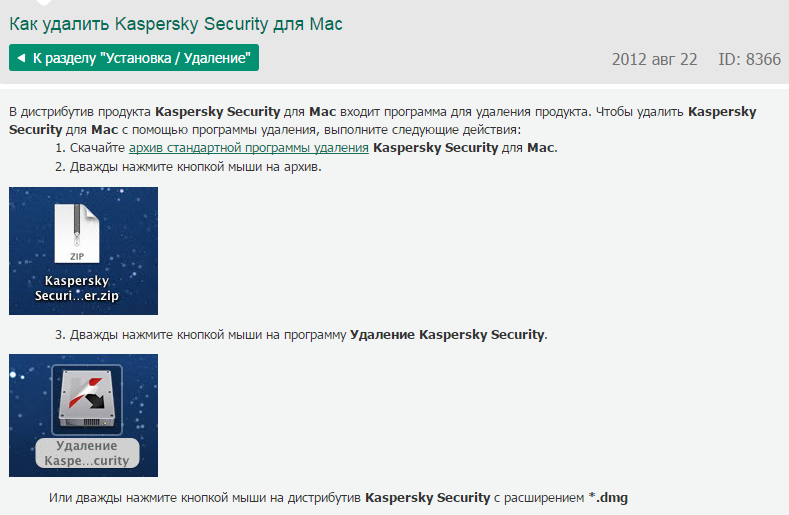
Dragging the app to the Trash, as you usually would on a Mac, isn’t enough here: the antivirus leaves its services in the system. So you need to remove it with a special utility.
- Download the uninstall utility from Kaspersky Lab’s official website (it’s also included in the antivirus installation .dmg image).
- Run it and go through the steps — the utility will ask for an administrator password.
- After it’s removed, restart the Mac.
Bravissimo! It immediately reminds me of Windows with its list of installed programs: go in, click and uninstall. Plus many programs have an uninstall shortcut right in the Start menu.
They say a Mac is simple. Well, it is — as long as you don’t do anything special, but one step off the beaten path and you run into quirks you need to know about. Many things are easier to do in Windows.
